How to Change Your Google Account Password on Desktop

By Trae Jacobs,

When you buy through our links, we may earn an affiliate commission.
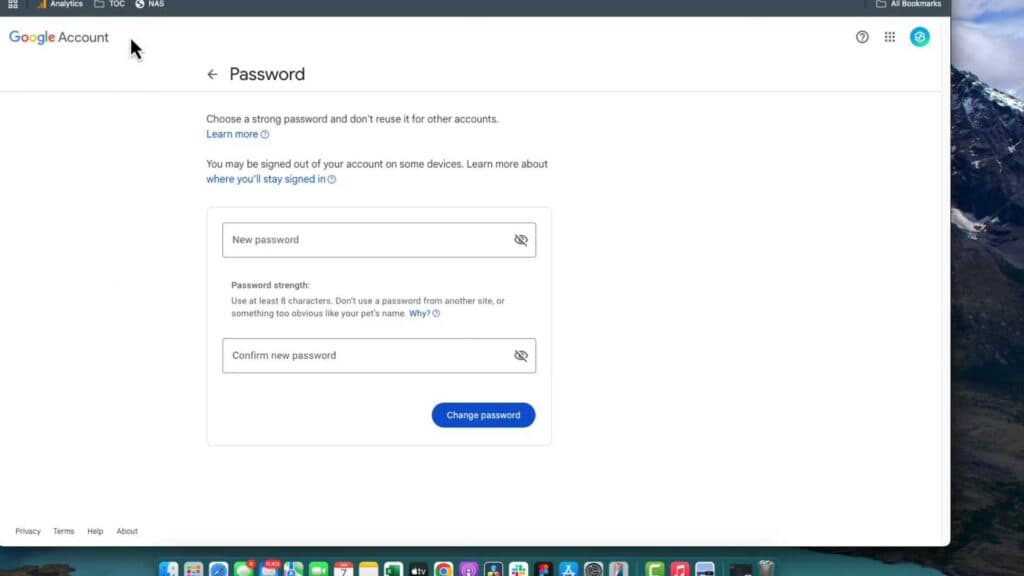
You need to update the password for your Google account. You can easily reset it yourself by following these steps.
- Go to google.com and click the apps selector icon near the top right corner of the page [0:07].
- Select the account option to open your account management settings [0:16].
- Click on the Security tab located on the left-hand side of the screen [0:23].
- Select the password option under the security section [0:31].
- Confirm your identity by clicking continue when prompted [0:43].
- Enter your new password and save the changes.
Ninja Tip: While you are in the Security tab, make sure your recovery phone number and email address are up to date so you can regain access if you ever get locked out of your account.
If you have forgotten your credentials and cannot log in, go to the Google account recovery page at accounts.google.com/signin/recovery.
Keep Reading



