How to Change Your Facebook Profile Picture

By Trae Jacobs,

When you buy through our links, we may earn an affiliate commission.
Your Facebook profile picture is currently missing or needs a fresh update. You can change it quickly by following these steps.
- Open the Facebook app and tap the Menu icon in the bottom right corner of the screen [0:28].
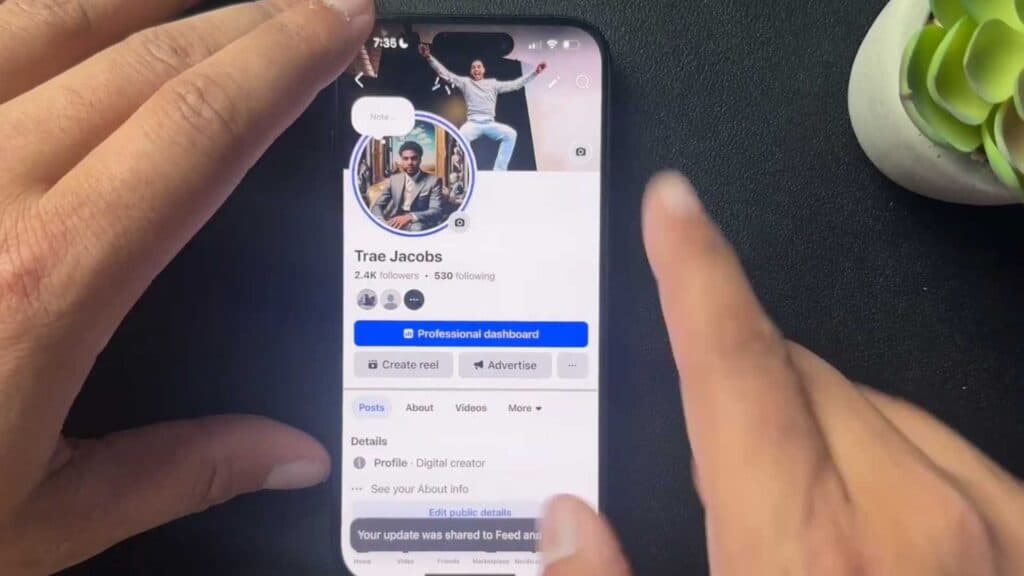
- Tap on your name or profile picture at the top of the menu to go to your profile [0:33].
- Select your profile picture area to view options like uploading from your camera roll, choosing an existing photo, or creating an AI-generated image [0:35].
- If you choose the AI option, follow the prompts to scan your face or generate a new image and select the one you want to use [1:34].
- Adjust your image settings, such as setting a temporary duration for the photo, and then save your changes.
Ninja Tip: If you want to change your profile picture without notifying all your friends in their news feeds, uncheck the “Share your update to News Feed” box before saving the new photo.
If the app continues to malfunction, navigate to Settings & Privacy > Settings > Your Information > Download Your Information or simply reinstall the application.
Keep Reading



