How to Change Your Facebook Password on Mobile and Desktop

By Trae Jacobs,

When you buy through our links, we may earn an affiliate commission.
You need to change your Facebook password but are unsure where to find the settings. You can update your credentials quickly using these steps.
Changing Your Password on Mobile
- Open the Facebook app, tap the menu icon in the bottom navigation, and select the settings gear at the top [0:24].
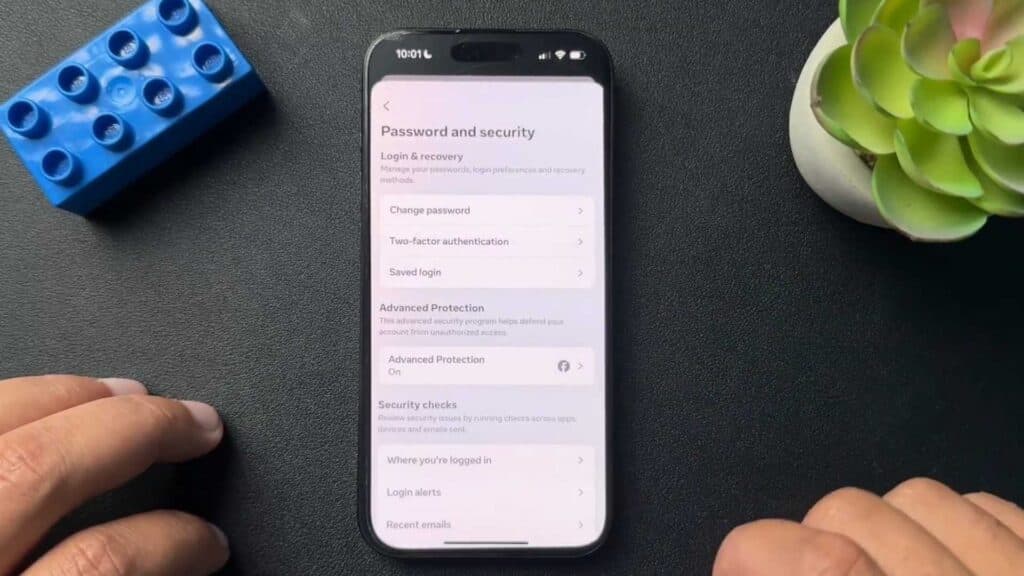
- Tap See more in Accounts Center, then select Password and security within the account settings section [0:40].
- Tap Change password, choose your account, enter your current password, and type your new password twice to save the changes [0:58].
Changing Your Password on Desktop
- Click your profile icon in the upper right corner, go to Settings & privacy, and choose Settings [2:07].
- Select See more in Accounts Center, go to Password and security, and click Change password [2:27].
- Select the account you want to update, enter your current information, and confirm your new password to finalize the switch.
Ninja Tip: Enable Two-Factor Authentication in the same Password and security menu to add an extra layer of protection to your account.
If you cannot access your account through these steps, use the Forgot password link on the login screen to begin the account recovery process.
Keep Reading



