How to Change Your Email Address on Facebook

By Trae Jacobs,

When you buy through our links, we may earn an affiliate commission.
Your Facebook account is currently linked to an outdated email address that you need to update. You can quickly swap it for a new one by following these simple steps.
- Open the Facebook app, tap the menu icon in the bottom navigation, and select the settings cog wheel in the top-right corner [0:11].
- Tap to open the Meta Accounts Center, go to Account Settings, and select Personal Details [0:23].
- Tap Contact Info and choose the option to add a new contact [0:41].
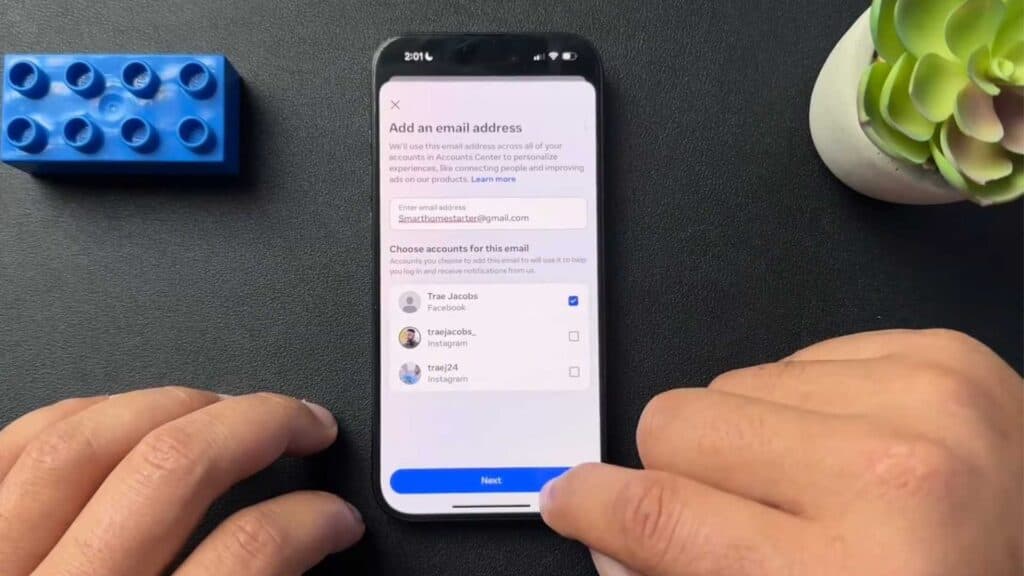
- Select Add email, type in your new address, and pick your Facebook account to link it to [0:50].
- Enter the confirmation code sent to your current email address to verify the request [1:10].
- Enter your password to confirm, then provide the second code sent to your new email address [1:29].
Ninja Tip: After adding your new address, make sure to set it as your primary contact in the same Contact Info menu so Facebook sends all important notifications to the correct inbox.
If you still cannot update your details, you can reach out to support by going to Help & Support > Report a Problem.
Keep Reading



