How to Change Your Default Font and Styles in Google Docs

By Trae Jacobs,

When you buy through our links, we may earn an affiliate commission.
Every time you open a new Google Doc, it defaults to the standard font settings instead of your preferred style. You can permanently change these defaults so your documents are formatted exactly how you want them from the start.
- Select the text you want to use as your new standard, go to Format > Paragraph styles > Normal text, and click Update ‘Normal text’ to match [0:44].
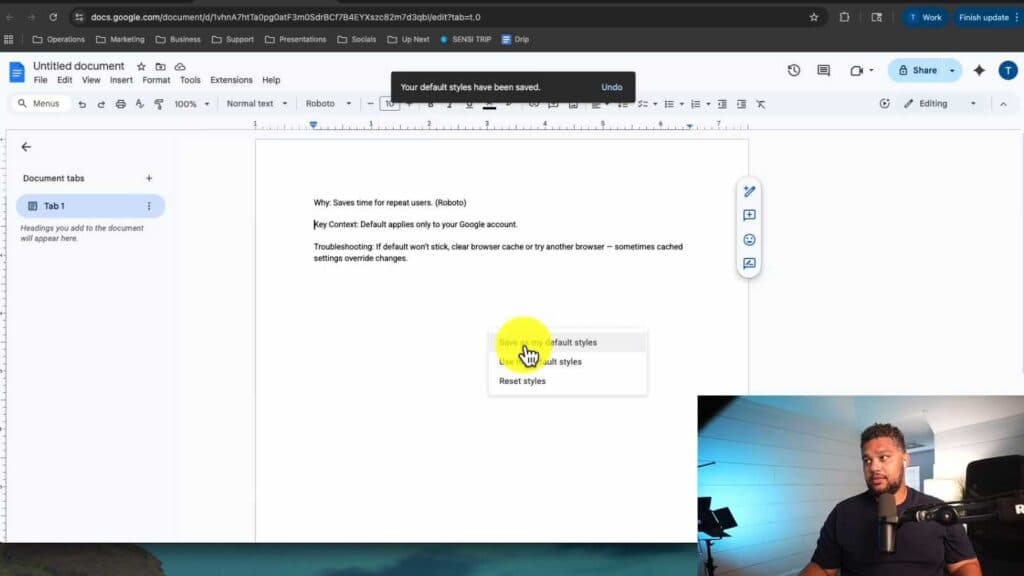
- Open the Format menu, navigate to Paragraph styles, and select Save as my default styles [1:06].
- To change header styles, highlight your H1 text, format it with your chosen font, size, and weight, then select Format > Paragraph styles > Heading 1 > Update ‘Heading 1’ to match [2:26].
- With the header still selected, go back to the Format menu, choose Par0agraph styles, and select Save as my default styles.
- If you need to revert to the original Google settings, go to Format > Paragraph styles > Options > Reset styles.
Ninja Tip: If you want to apply your new default styles to an existing document, simply open the file, go to Format > Paragraph styles > Options, and click Use my default styles.
To restore all formatting to the original Google defaults, go to Format > Paragraph styles > Options > Reset styles.
Keep Reading


