How to Change Your Default Browser on iPhone

By Trae Jacobs,

When you buy through our links, we may earn an affiliate commission.
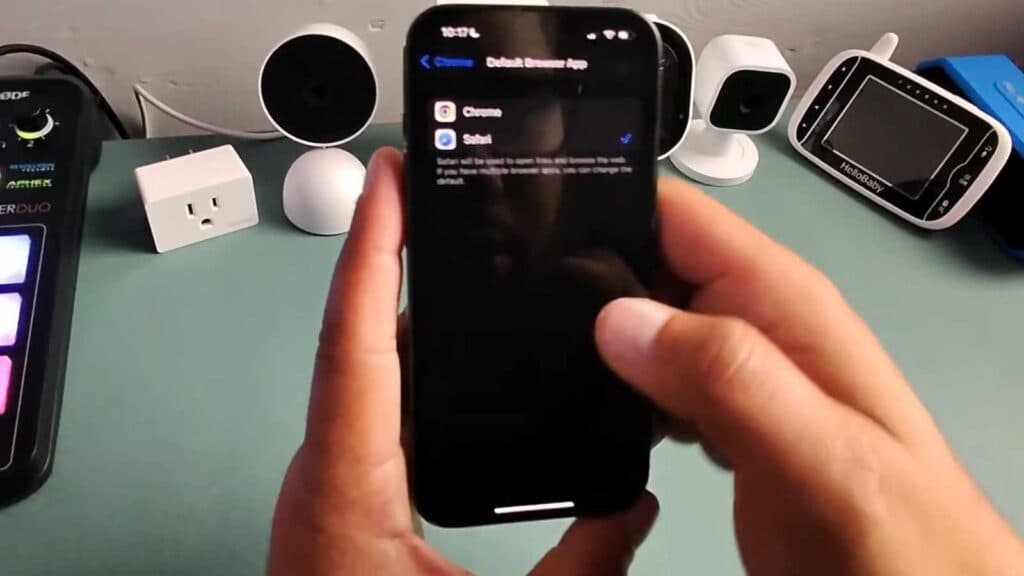
Your iPhone currently opens web links in Safari whenever you tap them. You can switch this to a different browser like Chrome by following these steps.
- Open the Settings app on your iPhone and scroll down to the apps list [0:25].
- Find and select the browser you want to set as the default, such as Chrome or Safari [0:31].
- Tap on Default Browser App and choose your preferred browser from the list [0:42].
- Once you select a new browser, your iPhone will automatically open all future web links in that app instead of Safari.
Ninja Tip: If you do not see the “Default Browser App” option for a specific browser, make sure you have the latest version of that app installed from the App Store, as older versions may not support this iOS feature.
If you encounter persistent issues with link behavior, go to Settings > General > Transfer or Reset iPhone > Reset > Reset All Settings.
Keep Reading



