How to Change Your Apple CarPlay Wallpaper and Display Settings

By Trae Jacobs,

When you buy through our links, we may earn an affiliate commission.
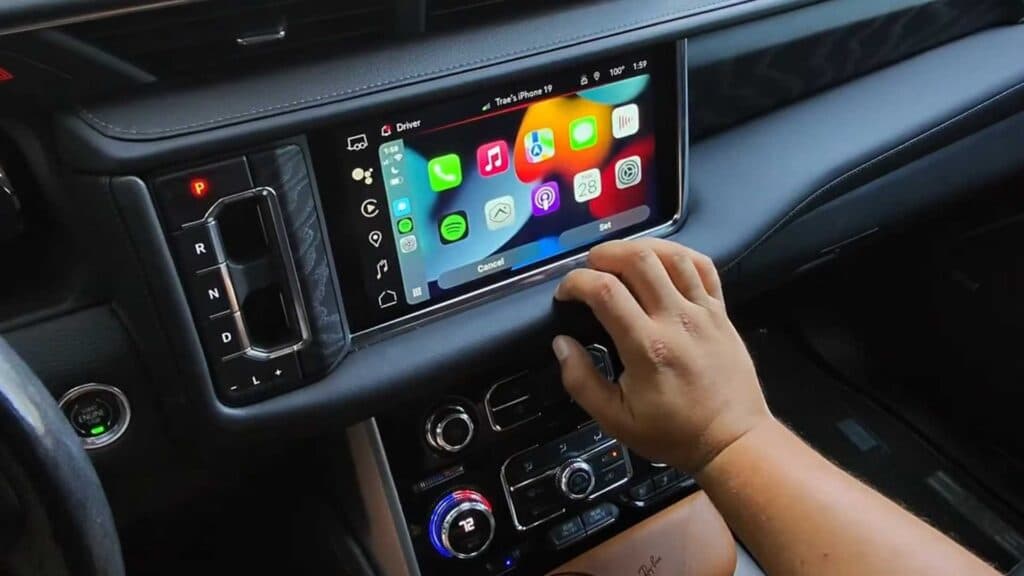
Your Apple CarPlay background looks plain and you want to personalize the layout. You can customize these visual settings directly through your car’s display.
- Open the Settings app on your CarPlay screen [0:18].
- Select Wallpaper to view the available background options [0:24].
- Choose your preferred wallpaper from the list and tap Set to apply the change [0:45].
- Go back to the main Settings menu and select Appearance to adjust your display theme [0:55].
- Choose between Automatic, Always Light, or Always Dark mode for your interface [1:02].
- Toggle the option to keep your maps in dark mode even when the rest of the system is set to light mode.
Ninja Tip: You can rearrange the icons on your CarPlay home screen by going to Settings > General > CarPlay on your iPhone, then selecting your car to customize the app layout.
If you need to reset your connection entirely, go to Settings > General > CarPlay on your iPhone, select your vehicle, and tap Forget This Car.
Keep Reading



