How to Change Wi-Fi on Your TP-Link Kasa Smart Plug

By Trae Jacobs,

When you buy through our links, we may earn an affiliate commission.
Your TP-Link Kasa smart plug is currently disconnected from your network. You can easily reconnect it to a new Wi-Fi connection without losing your existing device schedules.
- Press and hold the reset button on your device for five seconds until the light begins to blink, indicating it is in setup mode [0:38].
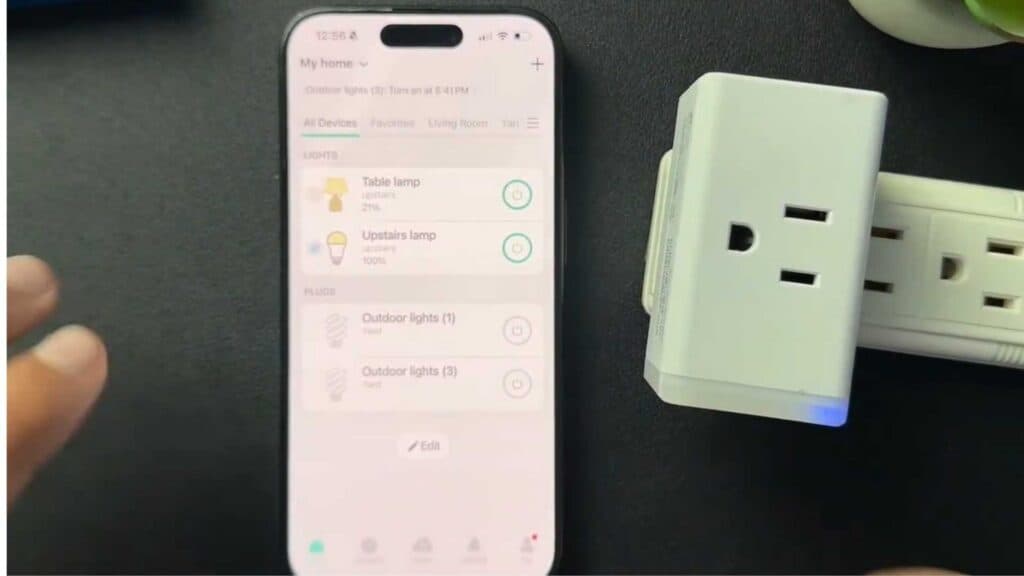
- Open the Kasa app, tap the plus icon in the upper right corner, and select Add a Device to choose your specific plug model [1:09].
- Go to your phone’s Wi-Fi settings, find the network broadcast by your TP-Link device, and connect your phone to it [1:42].
- Return to the Kasa app and select the Do Not Reset option when prompted to ensure you keep all your previous device settings [2:13].
- Choose your desired home network from the list and enter the password to finish the connection process [2:23].
Ninja Tip: If you frequently change your router settings, try naming your new network exactly the same as the old one, including capitalization; your smart devices will often reconnect automatically without needing a manual reset.
To perform a full factory reset that wipes all data, press and hold the reset button for ten seconds instead of five.
Keep Reading




