How to Change the Wi-Fi Network on Your Blink Sync Module

By Trae Jacobs,

When you buy through our links, we may earn an affiliate commission.
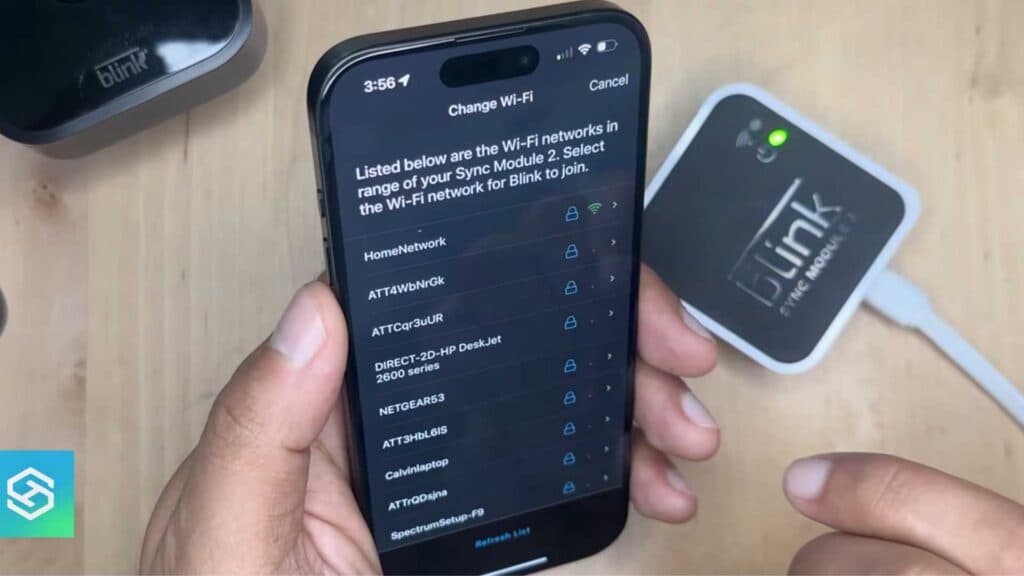
Your Blink security system is offline because it is disconnected from your current Wi-Fi network. You can easily update these settings by following a few simple steps in the app.
- Open the Blink app and scroll down to the Sync Module section on your main screen [0:45].
- Select your Sync Module and tap on the Change Wi-Fi Network button [0:57].
- Press and hold the reset button located on the back of your Sync Module until you see a red light appear [1:19].
- Wait until the indicator lights show a steady green and a blinking blue pattern [1:38].
- Tap the Discover Device button in the app and join the temporary Blink network when prompted [1:45].
- Choose your new home Wi-Fi network from the list and enter your password to finish the connection [2:11].
Ninja Tip: Keep your Sync Module at least ten feet away from your router to prevent signal interference, which is a common cause of connectivity drops.
If the system still fails to connect, perform a factory reset by holding the reset button on the Sync Module for a longer duration until the lights cycle.
Keep Reading




