How to Change the Wi-Fi Network on Your Arlo Camera

By Trae Jacobs,

When you buy through our links, we may earn an affiliate commission.
Your Arlo camera is disconnected from your home network. You can follow these steps to update your Wi-Fi settings and get it back online.
- Open the Arlo app and tap the settings wheel for the specific camera you need to update [0:23].
- Scroll down to the bottom of the menu and select the Change Network option [0:33].
- Ensure your smartphone is currently connected to the 2.4 GHz Wi-Fi network you want to use, as the app will automatically pull the network information from your phone [0:39].
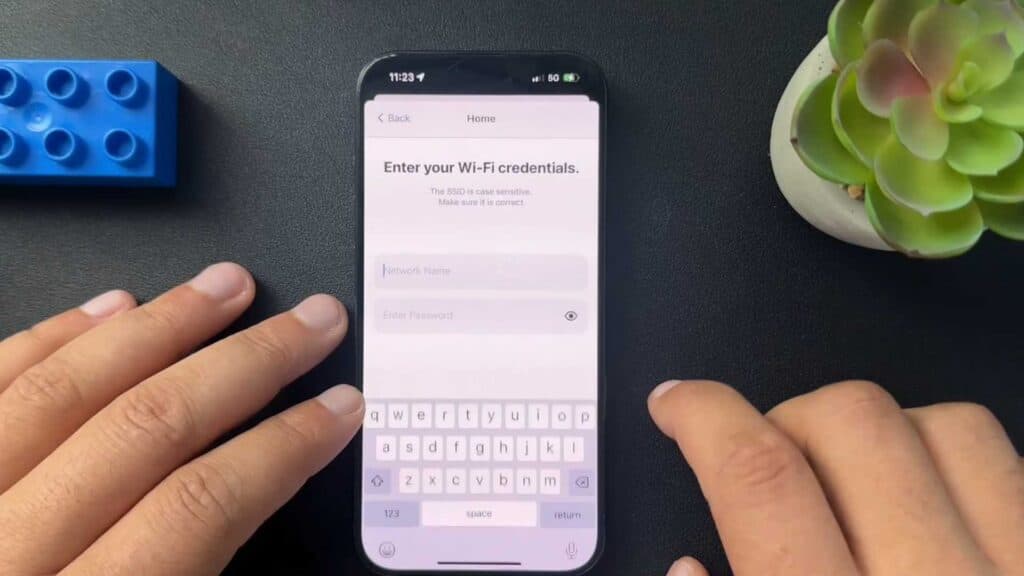
- Enter your Wi-Fi password and tap Continue [1:15].
- Press the sync button on your camera for two seconds until you see a blue light flashing [1:40].
- Use your phone to scan the QR code displayed in the app with your camera lens and wait for the chime [1:46].
- Tap finish once the app confirms it has successfully connected to the new network.
Ninja Tip: If your camera still fails to connect, try moving your router closer to the camera during the setup process to ensure a strong signal, then move it back to its original location once paired.
If the camera remains unresponsive, you can perform a factory reset via Settings > My Devices > [Camera Name] > Remove Device.
Keep Reading


