How to Change the Wi-Fi Network on Google TV or Chromecast

By Trae Jacobs,

When you buy through our links, we may earn an affiliate commission.
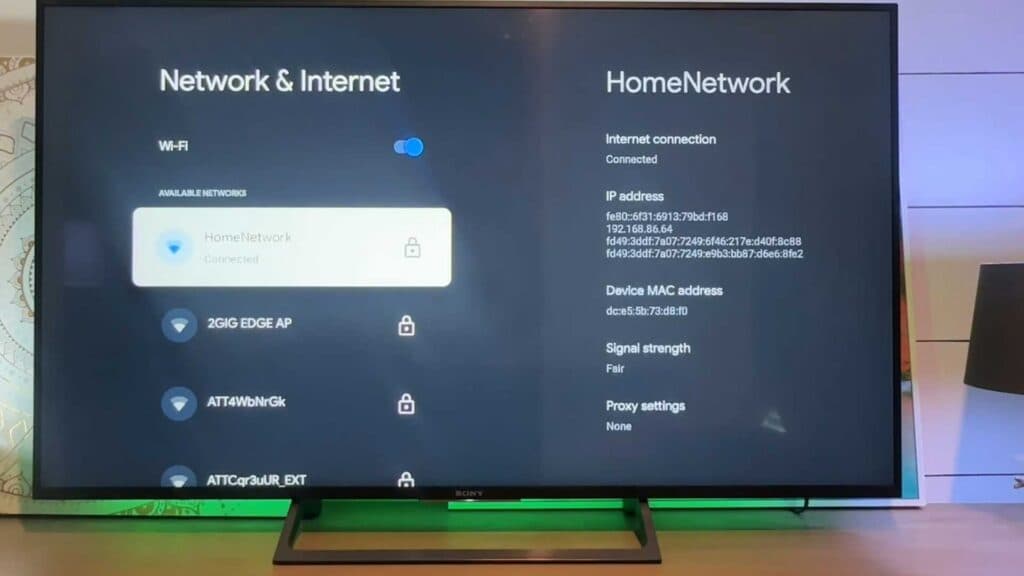
Your Google TV or Chromecast is disconnected from the internet or needs to be moved to a new network. You can update your connection settings by following these steps.
- Use your remote to navigate to the settings wheel icon on your home screen. [0:12]
- Scroll down the menu and select the Wi-Fi option. [0:18]
- Choose your new network from the list, or select “See all” if it does not appear immediately. [0:22]
- Select the network, enter your Wi-Fi password, and follow the on-screen prompts to finish connecting.
Ninja Tip: If you are having trouble staying connected, try restarting your router by unplugging it for 30 seconds and plugging it back in before attempting to reconnect your device. This often clears up minor handshake errors between your hardware and the network.
If these steps do not resolve your connectivity issues, you can perform a factory reset by navigating to Settings > System > About > Factory reset.
Keep Reading


