How to Change the Wi-Fi Network on an LG TV

By Trae Jacobs,

When you buy through our links, we may earn an affiliate commission.
Your LG TV is currently disconnected from your home network or is trying to connect to the wrong one. You can switch your television to a different Wi-Fi network by following these steps.
- Press the settings icon on your remote to open the menu [0:21].
- Scroll down to the Network option and select it [0:27].
- Choose Wi-Fi Connection to see your list of available networks [0:36].
- Select your desired network from the list, enter the password, and click Connect.
Ninja Tip: If your TV frequently drops the connection, try changing your router’s Wi-Fi channel from ‘Auto’ to a fixed channel like 1, 6, or 11 in your router settings to reduce signal interference.
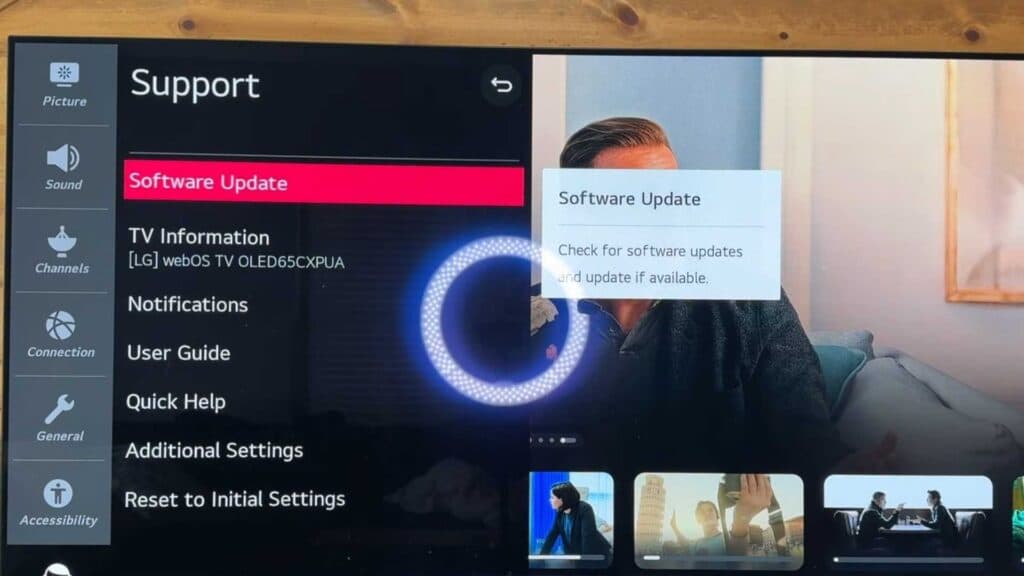
If you continue to experience connectivity issues, perform a factory reset by navigating to Settings > General > System > Reset to Initial Settings.
Keep Reading


