How to Change the Wi-Fi Network on a Samsung Smart TV

By Trae Jacobs,

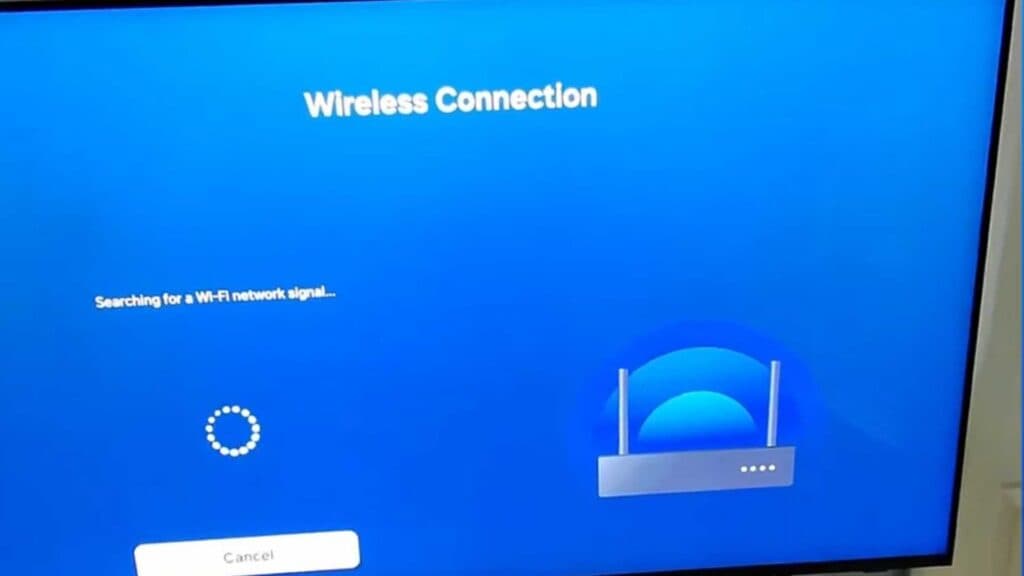
When you buy through our links, we may earn an affiliate commission.
Your Samsung Smart TV is currently connected to the wrong Wi-Fi network. You can follow these steps to switch your TV to the correct connection.
- Open the Settings menu on your television [0:14].
- Navigate to the Wi-Fi section and verify that your wireless connection is turned on [0:22].
- Select Network Status to view your current connection details [0:32].
- Disconnect from the network you are currently using [0:38].
- Open your Network Settings to begin the process of finding a new connection [0:46].
- Select your preferred wireless network from the list, enter the password, and wait for the TV to confirm it is connected to the internet.
Ninja Tip: If your TV refuses to connect, try changing your DNS settings to 8.8.8.8 in the IP Settings menu under Network Status to bypass common connectivity errors.
If you still cannot connect, try a full factory reset by going to Settings > General > Reset.
Keep Reading


