How to Change the Screensaver on Your Roku Device

By Trae Jacobs,

When you buy through our links, we may earn an affiliate commission.
Your Roku device displays a default screensaver when you are not using it. You can customize this background by selecting a new one from the settings menu.
- From the Roku home screen, go down to Settings and select Theme. [0:20]
- Choose Screensavers to view the available options, then select the one you want to use. [0:32]
- Select Get Screensaver to download the new design to your device. [1:05]
- Once the download finishes, select Set as screensaver to apply it immediately.
- Navigate back to the screensaver menu and select Screensaver start time to choose how long your device sits idle before the screensaver kicks in. [1:34]
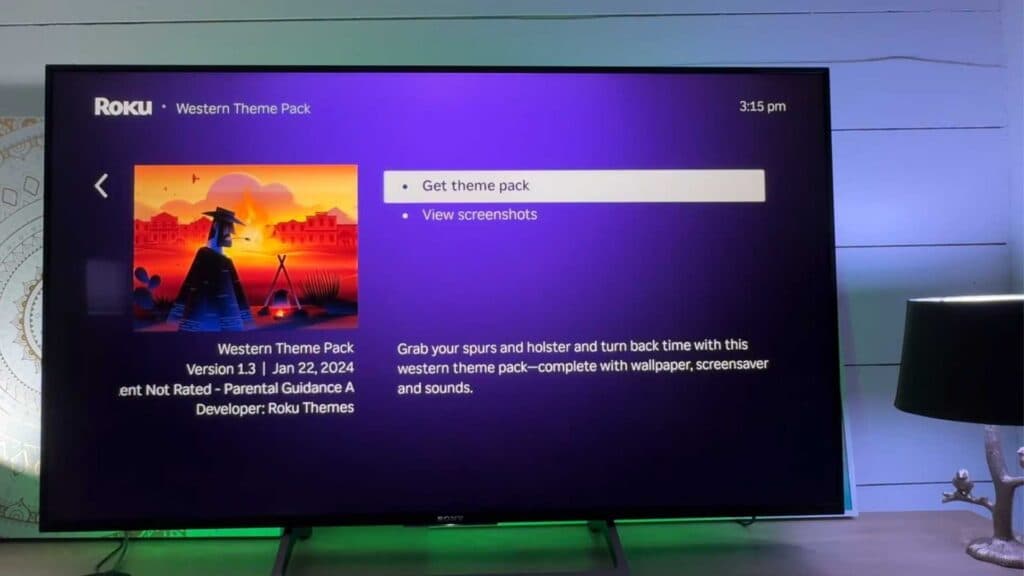
- If you want to change your wallpaper, screensaver, and system sounds all at once, select Theme packs in the theme menu and choose your preferred style.
Ninja Tip: You can also use the Roku mobile app to manage your themes and screensavers directly from your smartphone, which is often faster than using your remote. This is particularly helpful for previewing new content without navigating through multiple TV menus.
If the screensaver still does not appear correctly, you can perform a factory reset by going to Settings > System > Advanced system settings > Factory reset.
Keep Reading



