How to Change the Screen Saver on Google TV and Chromecast

By Trae Jacobs,

When you buy through our links, we may earn an affiliate commission.
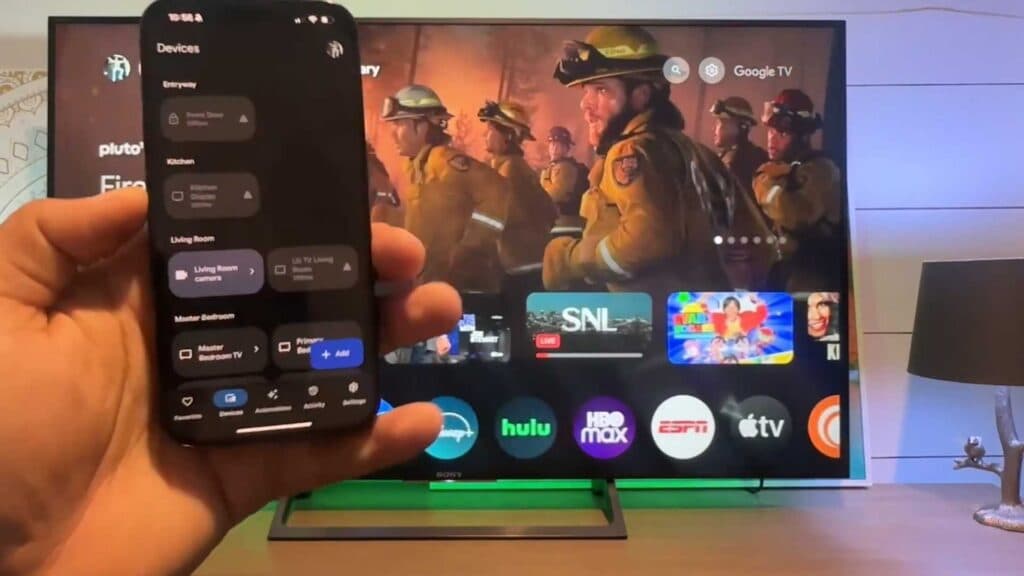
Your Google TV or Chromecast screen saver displays the wrong images or lacks the personal photos you want to see. You can change these settings easily through the Google Home app.
- Download the Google Home app on your smartphone and add your Chromecast or Google TV device to your home setup [0:11].
- Open the app, select your device, and tap on the option to edit your Ambient Mode [0:50].
- Choose your preferred source, such as Google Photos for your own custom albums or the Art Gallery for curated images [1:05].
- Select your specific photo albums or art collection and adjust settings like temperature units or whether to display the time and weather on your screen.
Ninja Tip: If you want your photos to look better, ensure your Google Photos albums are organized by theme or event, as this makes it much easier to select exactly what you want to rotate on your TV screen.
If you encounter persistent issues with your device, perform a factory reset by navigating to Settings > System > About > Factory reset.
Keep Reading



