How to Change the Order of Photos in a Facebook Post

By Trae Jacobs,

When you buy through our links, we may earn an affiliate commission.
The photos in your Facebook post appear in the wrong sequence. You can adjust this order yourself by following these steps.
- Open your Facebook post on a desktop computer and click the three dots in the top-right corner to select Edit post [0:38].
- Hover your mouse over the images and click the Edit all button [0:48].
- Drag and drop the photos into your preferred order and click Done [0:52].
- Select Save to apply the changes to your post.
- If you are using the mobile app, you must delete the post and re-upload the images to choose the correct order during the initial creation process [2:13].
- Select the images in the specific order you want them to appear before finalizing your upload.
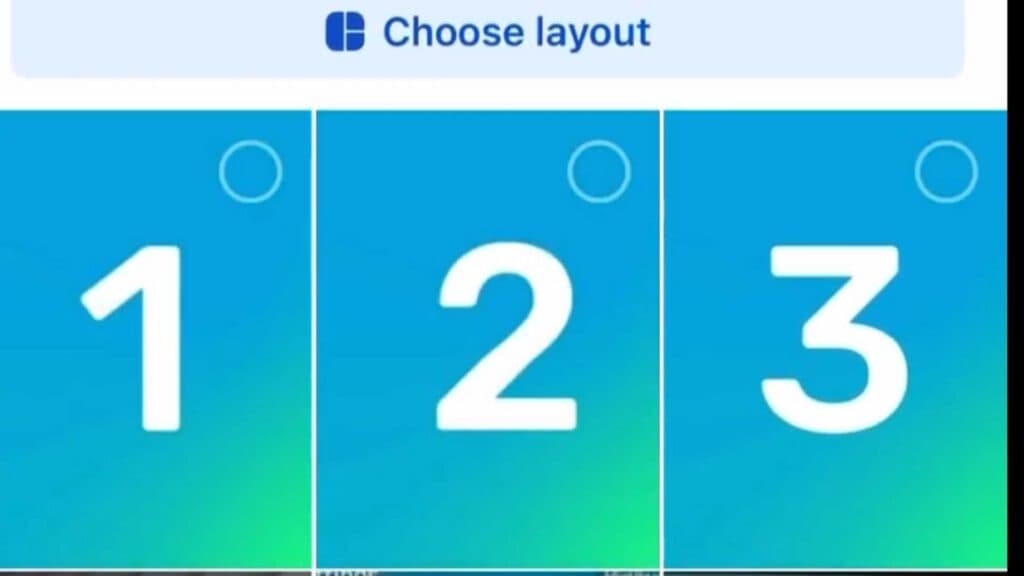
Ninja Tip: When uploading photos on mobile, tap the images in the specific sequence you want them to show; Facebook will automatically assign numbers to reflect that custom order.
To remove all content and start fresh, go to your profile, tap the three dots on the post, and select Move to trash.
Keep Reading



