How to Change the Name of Your Apple AirPods

By Trae Jacobs,

When you buy through our links, we may earn an affiliate commission.
Your AirPods show up with a generic name on your iPhone’s Bluetooth list. You can change this to a custom name in just a few moments.
- Open the Settings app on your iPhone. [0:30]
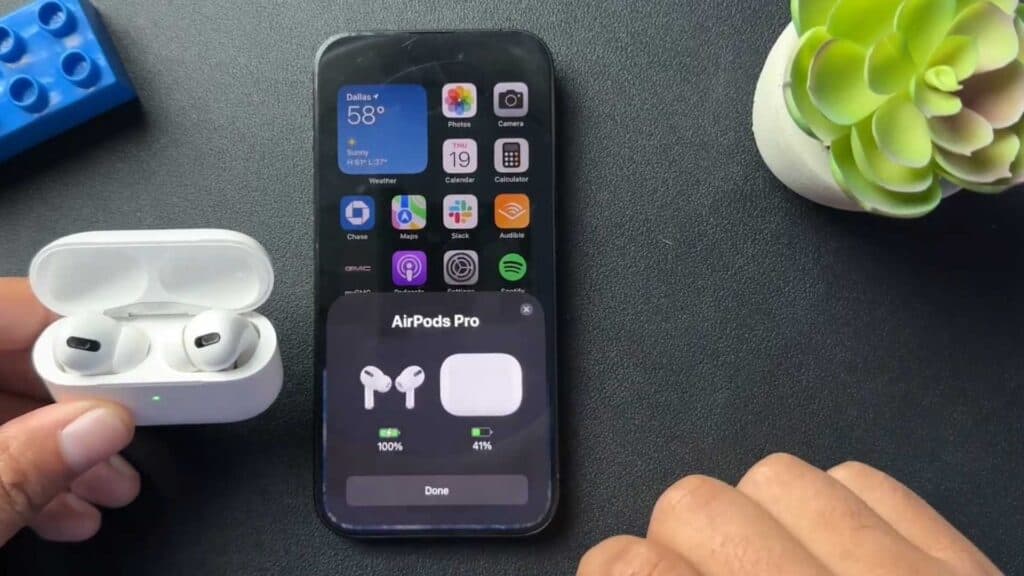
- Make sure your AirPods are connected and keep the charging case open. [0:32]
- Tap on your AirPods name under the Bluetooth menu to open the device settings. [0:37]
- Select the Name option, type in your preferred name, and tap Done.
Ninja Tip: If you want to identify your headphones instantly across all your devices, use a name that includes your initials or a unique identifier so you never confuse them with someone else’s pair.
If you still cannot rename your device, you can reset them by going to Settings > Bluetooth, tapping the ‘i’ icon next to your AirPods, and selecting Forget This Device before reconnecting them.
Keep Reading


