How to Change the Language on Your Google TV

By Trae Jacobs,

When you buy through our links, we may earn an affiliate commission.
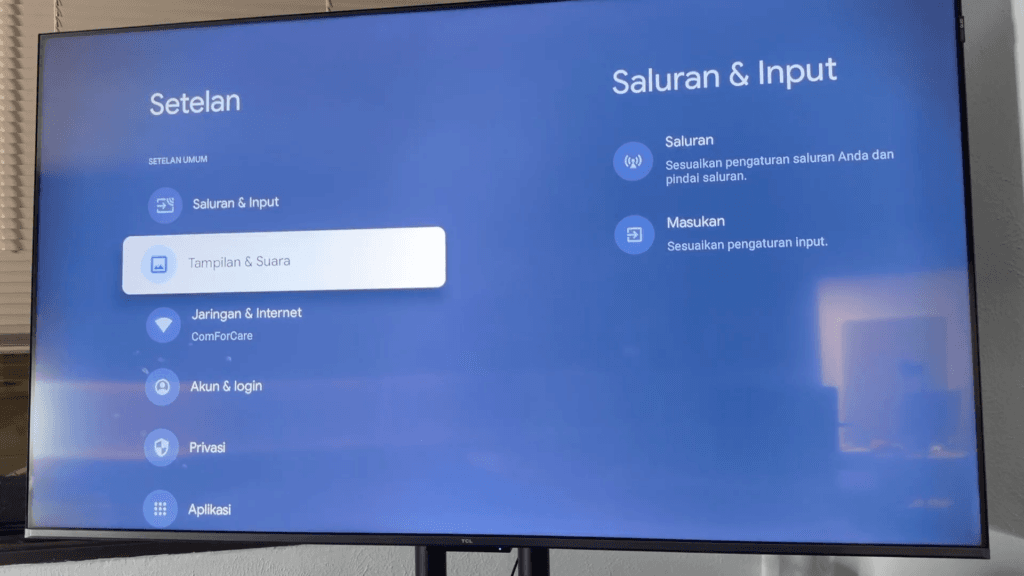
Your Google TV is set to a language you cannot read or understand. You can change the display language back to your preferred choice using the menu icons.
- Select the first cog wheel icon on the screen to open the settings menu [0:26].
- Navigate to and select the second cog wheel icon to access additional settings [0:31].
- Select the icon that looks like a computer screen to enter the System menu [0:45].
- Find and open the menu option represented by a globe icon [0:56].
- Select your preferred language from the list to update your TV settings.
Ninja Tip: If you accidentally get lost while navigating, press the “Back” button on your remote to return to the previous screen without restarting the process.
If these steps do not resolve the issue, you can perform a factory reset by navigating to Settings > System > About > Reset.
Keep Reading

