How to Change the Language and Region Settings on Mac

By Trae Jacobs,

When you buy through our links, we may earn an affiliate commission.
Your Mac is currently displaying the wrong language or using regional formats that don’t match your location. You can update these settings through your system preferences in just a few clicks.
- Open your System Settings by clicking the icon in your dock or selecting it from the Apple menu [0:13].
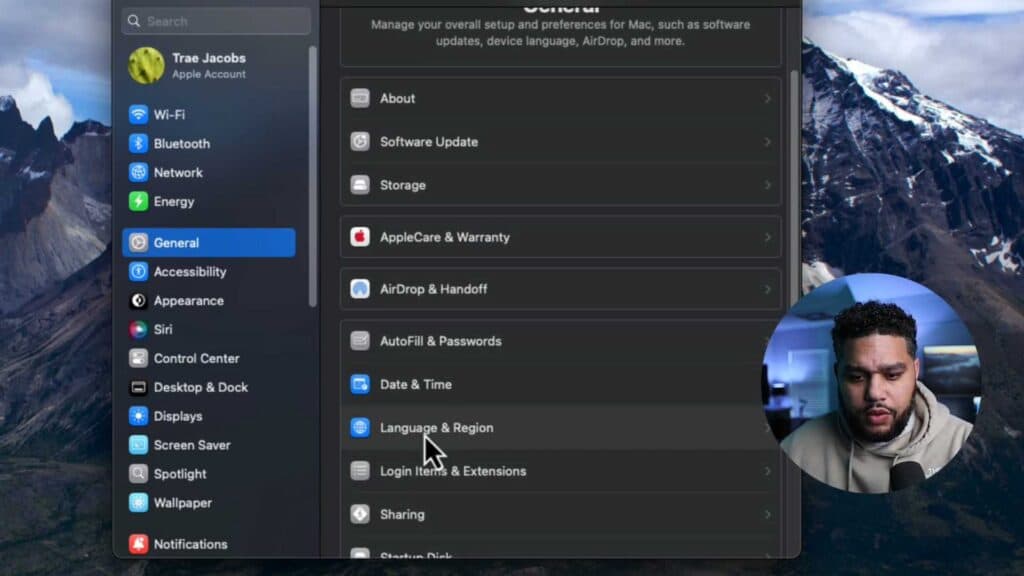
- Navigate to the General tab and click on Language & Region [0:26].
- Select your preferred language, and if you choose a new primary language, be prepared to restart your computer to apply the changes [0:30].
- Scroll down to the Region section to adjust your location, date formats, and measurement units to suit your preferences.
Ninja Tip: You can also add multiple languages to your preferred list and drag them into your desired order; macOS will automatically use the first one available in that list for each application.
For a complete reset of all system preferences, go to System Settings > General > Transfer or Reset > Erase All Content and Settings.
Keep Reading


