How to Change the HDMI Input on Your Google TV

By Trae Jacobs,

When you buy through our links, we may earn an affiliate commission.
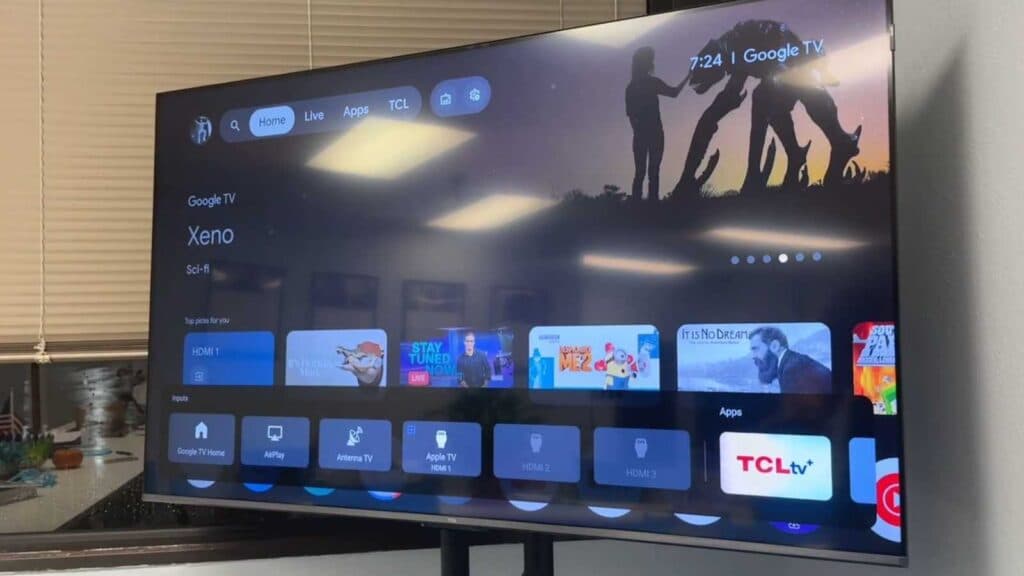
Your Google TV is stuck on the wrong input, and your external devices aren’t appearing on the screen. You can fix this issue by following these steps to reset your connection settings and check your hardware.
- Check your remote control for an input button and press it to see if a menu appears at the bottom of the screen [0:26].
- Open your TV’s Quick Settings menu and select the inputs button to see if a list of available devices pops up [1:03].
- Navigate to All Settings, then select Channels and Inputs, and finally External Inputs to view and rename your HDMI connections [1:25].
- Locate the CEC setting in your menu, turn it off, wait a moment, and then turn it back on to reset the communication between your devices [1:54].
- Check the physical HDMI cable connections at the back of your TV to ensure they are secure and undamaged.
- Unplug your TV and your external device from the power outlet for 60 seconds to dissipate any remaining electrical buildup before plugging them back in.
Keep Reading



