How to Change the Background Color of Your Instagram Story

By Trae Jacobs,

When you buy through our links, we may earn an affiliate commission.
Your Instagram Story background is currently stuck on the default color. You can change this using a simple workaround to get the exact look you want.
- Tap the plus icon and select Story to start a new post, then use the Create menu and toggle through the limited background options if you want a quick, basic change [0:35].
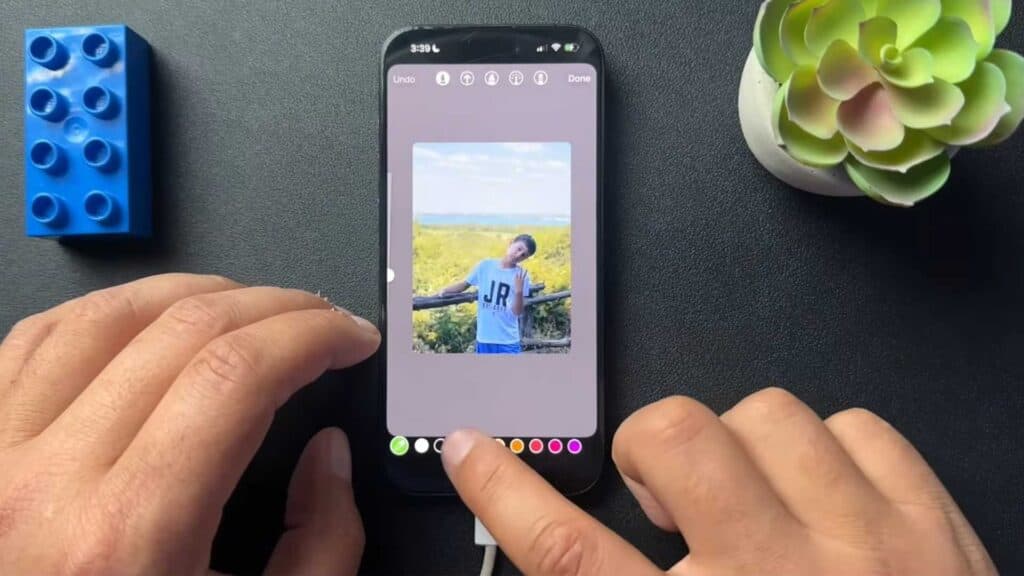
- To access more color options, start by adding an image from your camera roll to your story [1:29].
- Tap the three dots at the top right, select Draw, and pick your preferred color from the bottom menu [1:33].
- Long press anywhere on the screen to fill the entire background with that color [1:49].
- Hit Done, tap the picture icon to re-add your original image as a sticker, and resize it to fit your new background.
Ninja Tip: You can use the eyedropper tool located on the far left of the color palette to sample any color directly from the photo you uploaded, allowing you to perfectly match your background to your image.
If these steps do not resolve your issues, you can clear your app cache or reinstall Instagram via your phone’s Settings > Apps > Instagram.
Keep Reading



