How to Change Slide Size in Google Slides

By Trae Jacobs,
When you buy through our links, we may earn an affiliate commission.
Your Google Slides presentation has the wrong dimensions for your project. You can easily adjust your slide size to fit your specific needs.
- Open your presentation and click on the “File” menu in the top left corner [0:09].
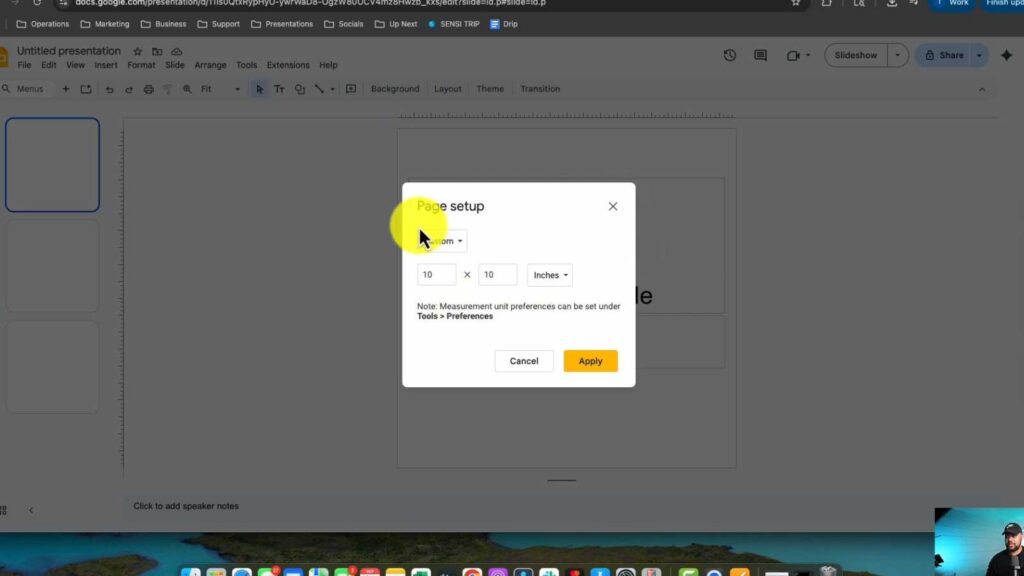
- Scroll down and select “Page setup” from the dropdown menu [0:13].
- Choose either a preset size, such as widescreen 16:9 or standard 4:3, or select “Custom” to enter your own specific measurements [0:22].
- Enter your desired dimensions and click “Apply” to update the slide size for your entire presentation.
Ninja Tip: If you are resizing a presentation that already contains content, remember to double-check the placement of your images and text boxes, as they may become distorted or misaligned after the slide dimensions change.
If the slides are not displaying correctly after resizing, check your browser’s page zoom settings or try clearing your browser cache.
Keep Reading



