How to Change Picture Settings on Your Samsung Smart TV

By Trae Jacobs,

When you buy through our links, we may earn an affiliate commission.
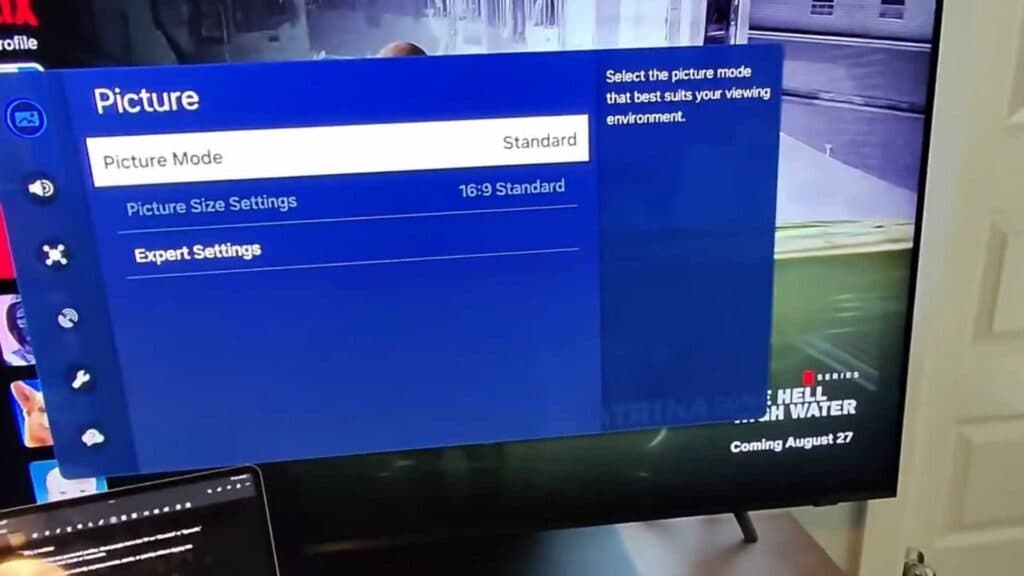
Your Samsung TV picture mode is set to a preset that does not match your current viewing preference. You can manually adjust your picture settings to improve the visual quality for movies, sports, or gaming.
- Open your TV menu and select the “Picture Mode” option to scroll through and select your preferred setting [0:23].
- If you need more options, scroll to the right of the menu and select “All Settings” to open the full configuration menu [0:40].
- Select your desired mode from the list provided in the settings menu [0:55].
- If you want to refine the picture further, look for an “Expert Settings” menu to manually adjust individual display features based on your room’s ambient lighting.
Ninja Tip: Many Samsung TVs have an “Intelligent Mode” located under the General settings menu that automatically adjusts brightness and sound based on your viewing environment. Turning this on can save you from having to manually recalibrate your TV every time the lighting in your room changes.
If you want to start over entirely, you can return your TV to its original out-of-the-box state by navigating to Settings > General > Reset.
Keep Reading


