How to Change Page Orientation to Landscape in Google Docs

By Trae Jacobs,

When you buy through our links, we may earn an affiliate commission.
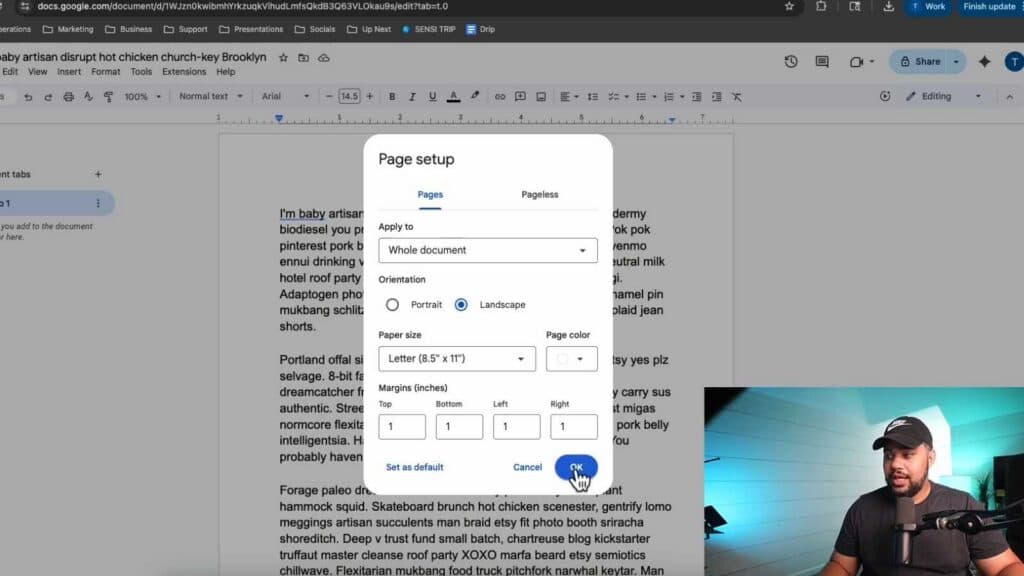
Your Google Docs document is currently in portrait orientation, but you need it to be in landscape. You can change this setting quickly through the page setup menu.
- Click on the “File” menu in the top toolbar [0:17].
- Select “Page setup” from the dropdown list [0:22].
- Under the Orientation section, choose “Landscape” and click “OK” to apply the changes [0:26].
Ninja Tip: If you only need one specific page in your document to be landscape rather than the entire file, you can highlight the text on that page, go to File > Page setup, select “Selected content” under the “Apply to” option, and then choose Landscape.
If the page layout still does not appear correctly, check your browser’s print preview settings to ensure your printer is not overriding the document orientation.
Keep Reading



