How to Change or Add a Payment Method on Amazon

By Trae Jacobs,

When you buy through our links, we may earn an affiliate commission.
You are trying to check out on Amazon, but the wrong credit card is selected for your purchase. You can update your payment preferences or add a new card directly through your account settings.
- Proceed to the checkout screen in your Amazon cart and select “Change” next to your current payment method to choose a different card you already have on file [0:42].
- If you need to add a new card during checkout, select the “Add new” option to enter your payment details [1:12].
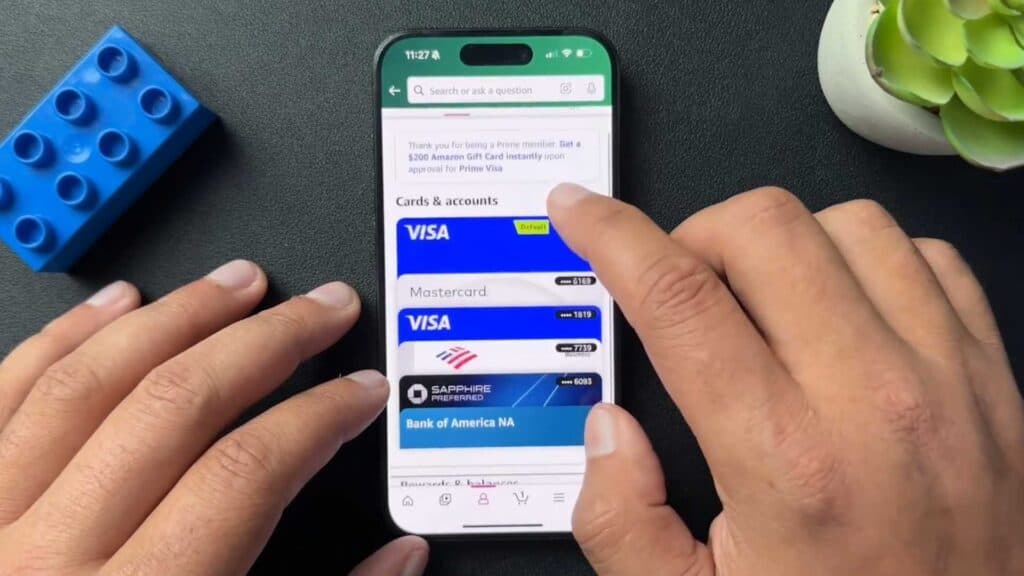
- To add a payment method outside of the checkout flow, tap the three-line menu icon on the product page and navigate to your account settings [1:34].
- Scroll down to the payments section and select your payments to add or manage your cards.
Ninja Tip: Check if your credit card has a “Set as Default” option in your Amazon Wallet settings so your preferred card automatically populates for future one-click orders.
If you still encounter issues, try clearing your browser cache and cookies or contact Amazon support through Customer Service > Help > Contact Us.AI can make mistakes, so double-check it. Learn more
Keep Reading



