How to Change Incoming Call Display Style on iPhone

By Trae Jacobs,

When you buy through our links, we may earn an affiliate commission.
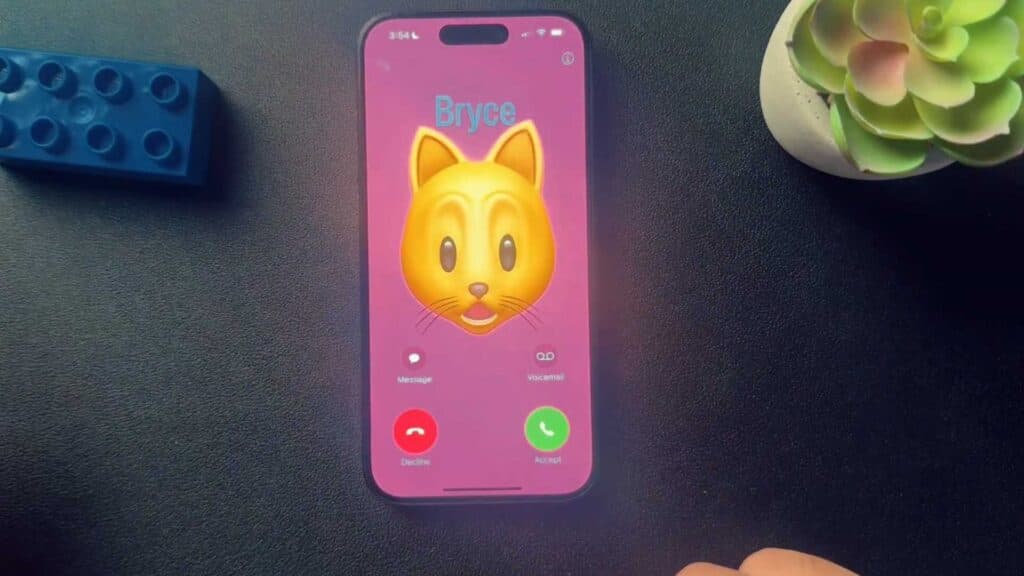
Incoming calls take up your entire screen when your iPhone is unlocked. You can change this to a compact banner notification by adjusting your settings.
- Open the Settings app on your iPhone [0:21].
- Scroll down to the list of apps and tap on “Phone“ [0:27].
- Tap on “Incoming Calls” to see your display options [0:38].
- Select either “Banner” or “Full Screen” to match your preference.
Ninja Tip: If you want to stop calls from even vibrating or making noise, you can use the “Silence Unknown Callers” option in that same Phone settings menu to send unrecognized numbers directly to voicemail.
If you encounter persistent issues with call notifications, you can reset all your network settings by going to Settings > General > Transfer or Reset iPhone > Reset > Reset Network Settings.
Keep Reading



