How to Change Between Color and Black & White Printing on Mac

By Trae Jacobs,

When you buy through our links, we may earn an affiliate commission.
Your printer is currently set to the wrong color mode for the document you need to print. You can quickly switch between color and black-and-white settings by adjusting your print dialog options.
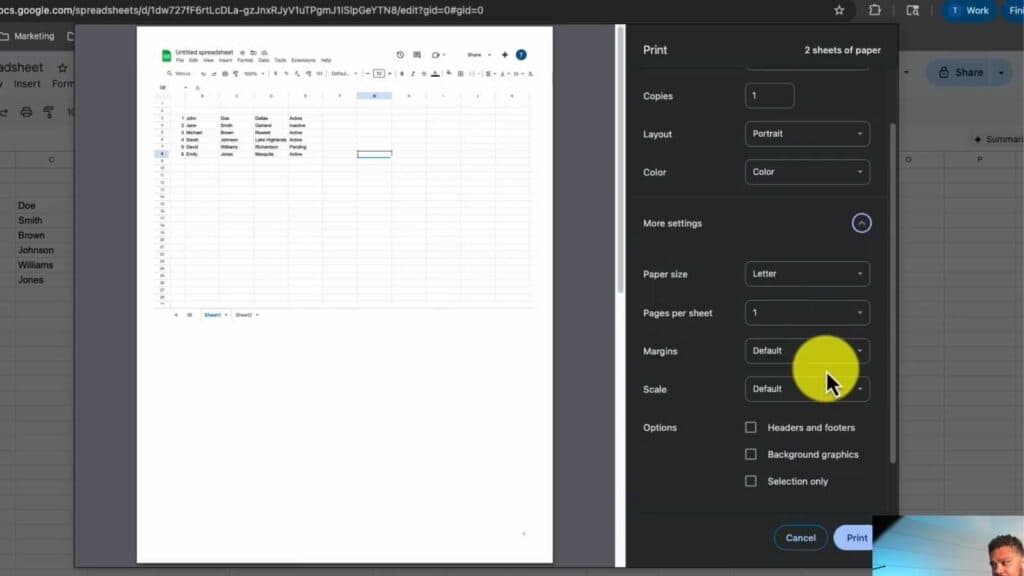
- If you are printing from Google Chrome, click the print icon to open the interface, then select your desired color option from the drop-down menu [0:26].
- If you are printing from a system application like Preview, open the print dialog and locate the color toggle [0:53].
- Click the toggle to switch your selection between black and white or color as needed.
Ninja Tip: If you don’t see color options in the standard dialog, click “Show Details” at the bottom of the window to expand the full menu, where printer-specific color profiles and quality settings are often hidden.
If your printer continues to print incorrectly, navigate to System Settings > Printers & Scanners to remove and re-add your printer.
Keep Reading



