How to Change All Old Facebook Posts to ‘Only Me’ for Privacy

By Trae Jacobs,

When you buy through our links, we may earn an affiliate commission.
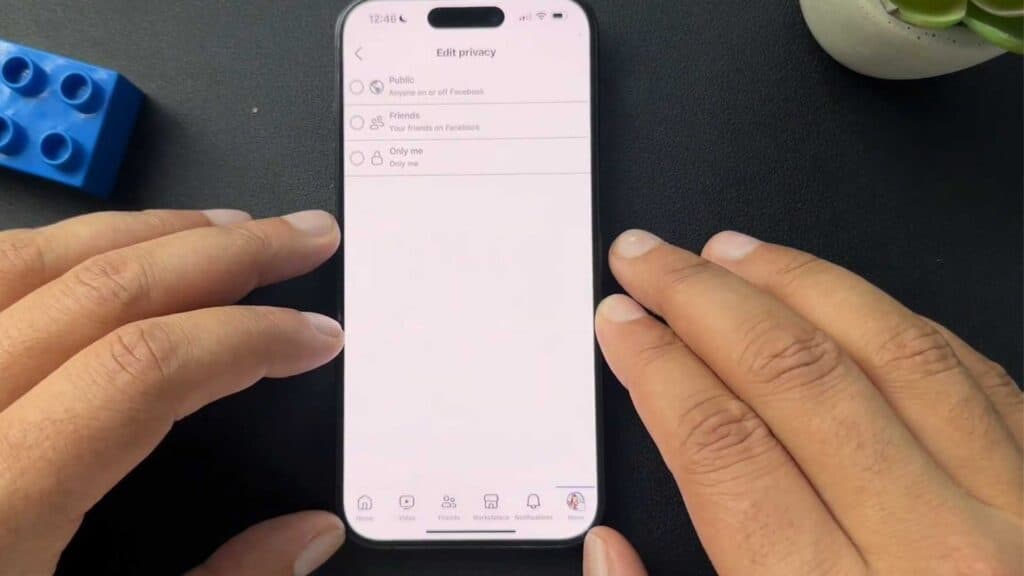
Your old Facebook posts are currently visible to people you no longer want to share them with. You can change the audience for all of your past posts to ‘Only Me’ to lock down your profile.
- Open the Facebook app on your device and navigate to your profile page. [0:31]
- Open your profile settings and scroll down until you reach the activity section to open your Activity Log. [0:42]
- Tap on ‘Public Posts’ and remove the public filter to view all of your past content. [1:08]
- Select all your posts, tap the three dots icon, choose ‘Change audience,’ and then set it to ‘Only Me.’
Ninja Tip: To prevent future posts from being public by default, go to Settings > Audience and Visibility > Posts and change your ‘Default audience’ setting to ‘Friends’ or ‘Only Me.’
If you want to clear your entire digital footprint on the platform, navigate to Settings > Your Information > Deactivation and Deletion.
Keep Reading



