How to Cast or Screen Mirror Content to a Samsung TV

By Trae Jacobs,

When you buy through our links, we may earn an affiliate commission.
Your mobile device is not streaming content to your Samsung television. You can fix this connection issue by following these steps.
- Open the video or app on your phone that you want to watch on your television [0:52].
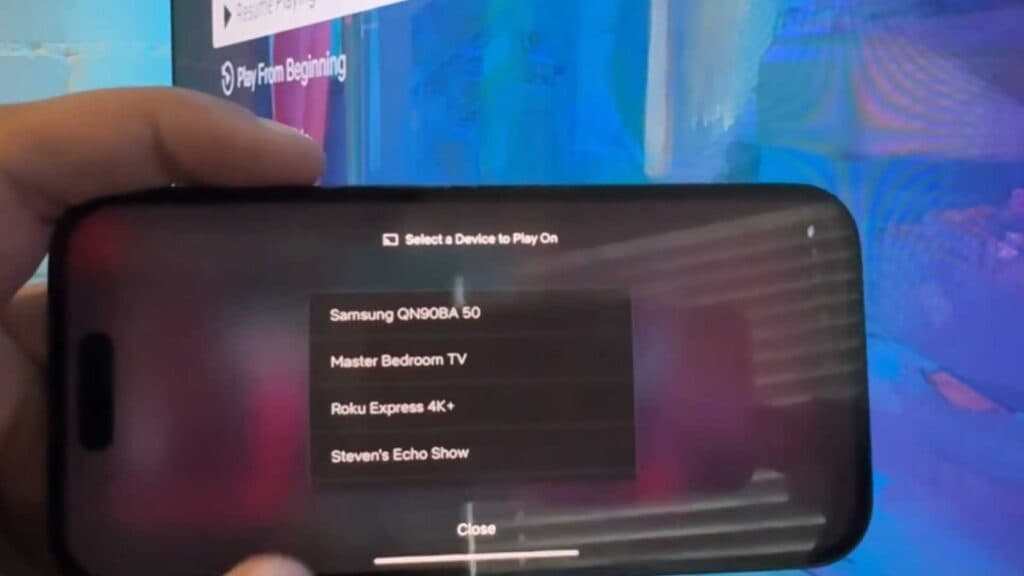
- Look for the Cast icon, which looks like a rectangle with signal waves in the corner, and tap it [0:27].
- Select your Samsung TV from the list of available devices that appears on your screen [1:03].
Ninja Tip: Make sure both your phone and your Samsung TV are connected to the exact same Wi-Fi network; otherwise, your TV will not appear in the casting list.
If the connection still fails, perform a reset through Settings > General > Reset.
Keep Reading


