How to Cancel Apple Subscriptions on iPhone

By Trae Jacobs,

When you buy through our links, we may earn an affiliate commission.
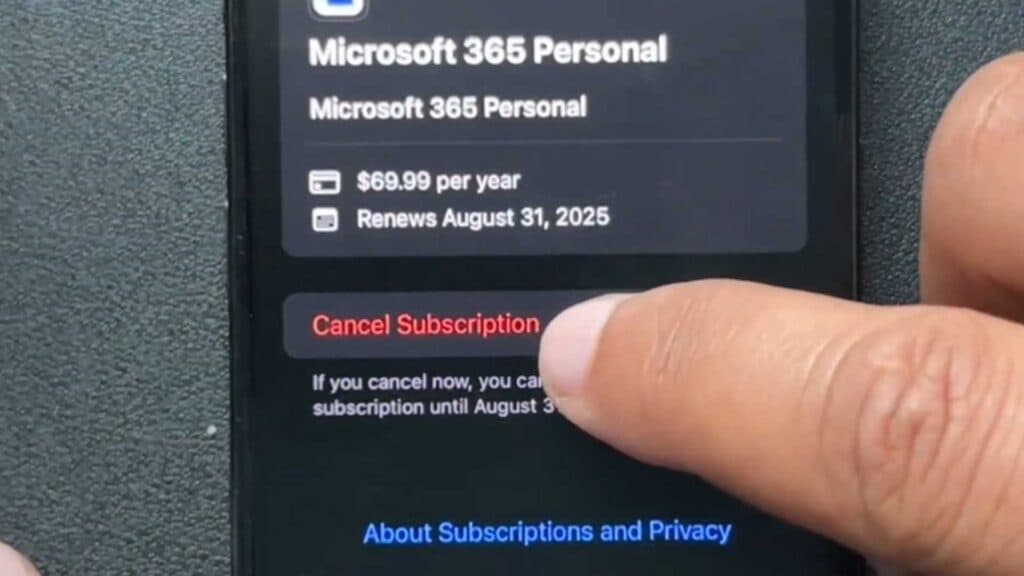
You have active Apple subscriptions on your device that you no longer need. You can easily remove these recurring charges by following these steps.
- Open the Settings app on your iPhone or iPad [0:15].
- Tap on your name at the top of the screen to access your Apple account [0:19].
- Select the Subscriptions menu option [0:27].
- Choose the specific subscription you want to end from the list of active or inactive services [0:43].
- Tap the Cancel Subscription button to confirm your choice.
Ninja Tip: Check your Purchase History in the same Apple ID menu to verify if you have any other hidden billing agreements linked to your account.
If you continue to have billing issues, navigate to Settings > General > Transfer or Reset iPhone > Erase All Content and Settings.
Keep Reading



