How to Block Numbers on iPhone (Calls & iMessage)

By Trae Jacobs,

When you buy through our links, we may earn an affiliate commission.
Unwanted callers and text messages are appearing on your iPhone right now. You can block these numbers directly in your Settings or within your apps.
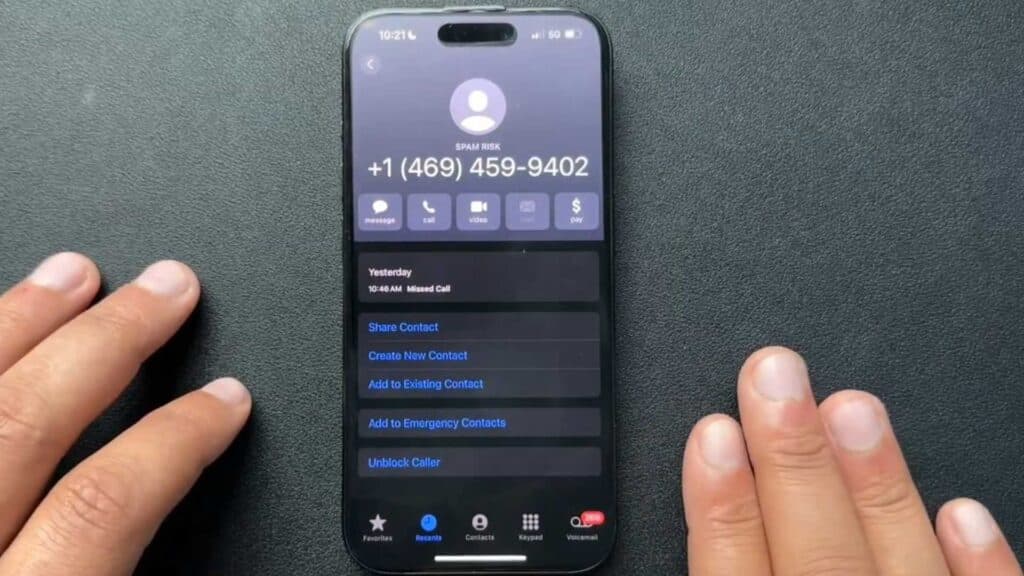
- Open your recent calls list, tap the info button next to the spam number, scroll to the bottom, and select Block this Caller. [0:27]
- Open the text message from the sender, tap their number at the top of the screen, select the info section, and choose to block the caller. [1:31]
- Use third-party spam blocking apps like Hiya or RoboKiller to help automatically filter out future unwanted calls.
Ninja Tip: Turn on Silence Unknown Callers in your phone settings to automatically send calls from anyone not in your contacts straight to voicemail.
If these steps do not stop the issue, you can clear all communication history by going to Settings > General > Transfer or Reset iPhone > Erase All Content and Settings.
Keep Reading


