How to Adjust Keyboard Backlight Brightness on a Mac

By Trae Jacobs,

When you buy through our links, we may earn an affiliate commission.
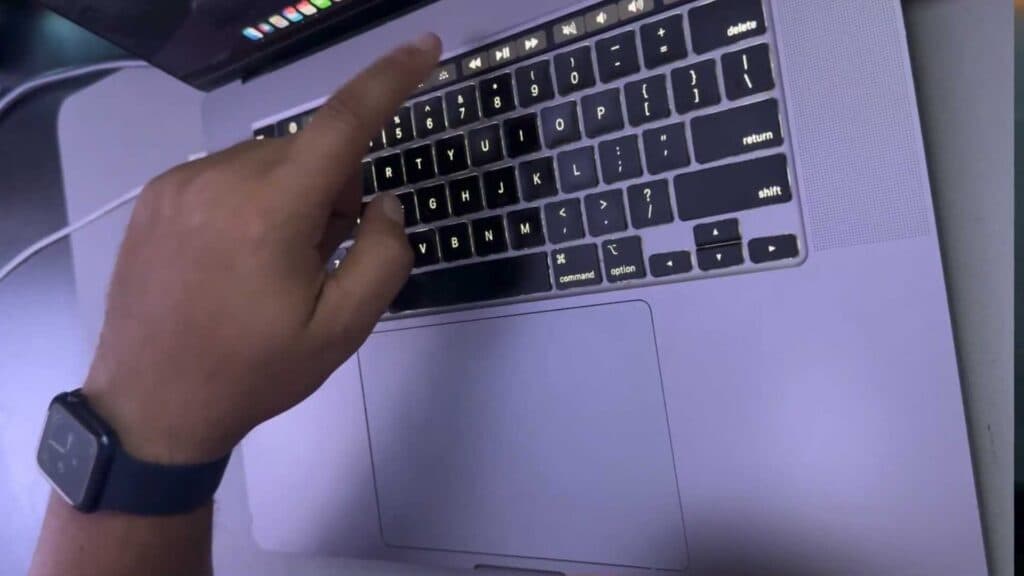
Your Mac keyboard backlight is either too bright or completely turned off. You can change these settings by following a few simple steps.
- If your Mac has a Touch Bar, open the Control Strip and tap the brightness keys to increase or decrease the intensity [0:14].
- If you do not have a Touch Bar, open System Settings and navigate to the Keyboard section [0:37].
- Select the option to have your keyboard brightness adjust automatically based on the ambient light in your room, or use the slider to set it manually [0:47].
- To conserve battery, choose how long the keyboard backlight stays on after a period of inactivity.
- You can also configure your function keys to control your keyboard lighting preferences.
Ninja Tip: You can quickly toggle the backlight on or off by using the dedicated brightness keys (usually F5 and F6) on the top row of your keyboard, provided you have enabled the standard function key behavior in your keyboard settings.
If you still experience issues, navigate to System Settings > General > Transfer or Reset to reset your keyboard configuration.
Keep Reading



