How to Add Your Driver’s License to Apple Wallet

By Trae Jacobs,

When you buy through our links, we may earn an affiliate commission.
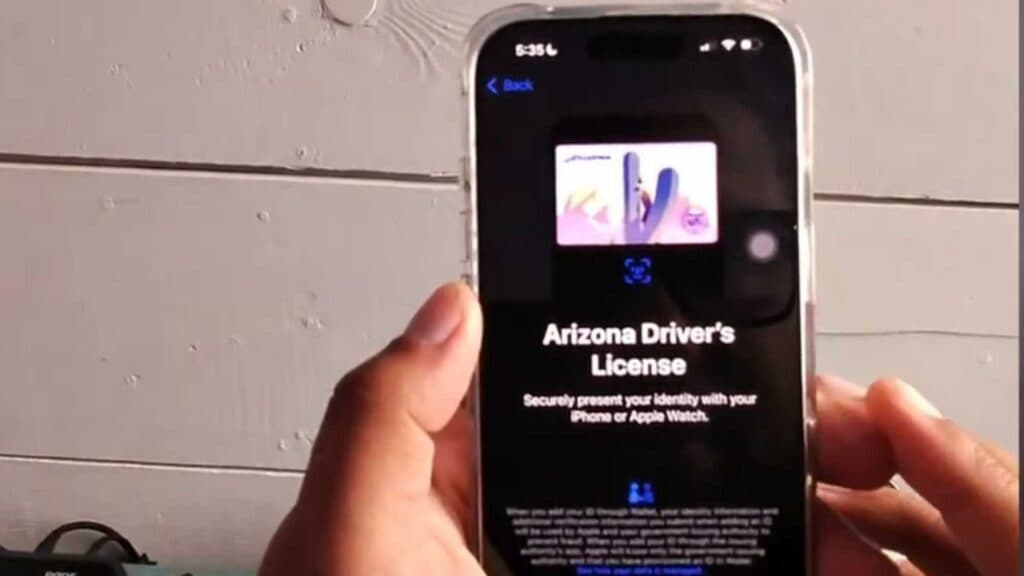
Your physical driver’s license or state ID is not currently in your Apple Wallet. You can set this up quickly by following these steps.
- Open the Settings app on your iPhone and scroll down to select Wallet & Apple Pay [0:23].
- Tap Add Card under the Payment Cards section [0:39].
- Select Driver’s License or State ID from the list of available card types [0:44].
- Follow the on-screen prompts to scan the front and back of your physical ID [0:51].
Ninja Tip: If your ID fails to scan, ensure you are in a brightly lit room and wipe your camera lens to help your iPhone capture the fine details of the card surface.
If you encounter persistent errors during setup, try navigating to Settings > General > Software Update to ensure your iOS is current.
Keep Reading


