How to Add Slide Transitions and Object Animations in Google Slides

By Trae Jacobs,
When you buy through our links, we may earn an affiliate commission.
Your Google Slides presentation lacks movement between pages and objects. You can easily add dynamic transitions and custom animations to make your slides more engaging.
- Finish building your entire presentation first to ensure you have a clear vision before adding movement. [0:14]
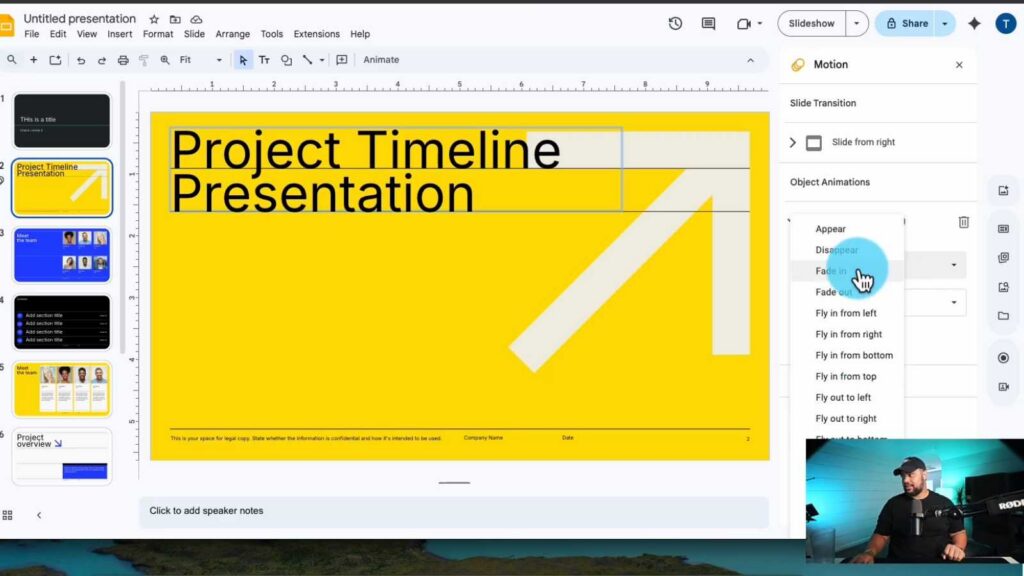
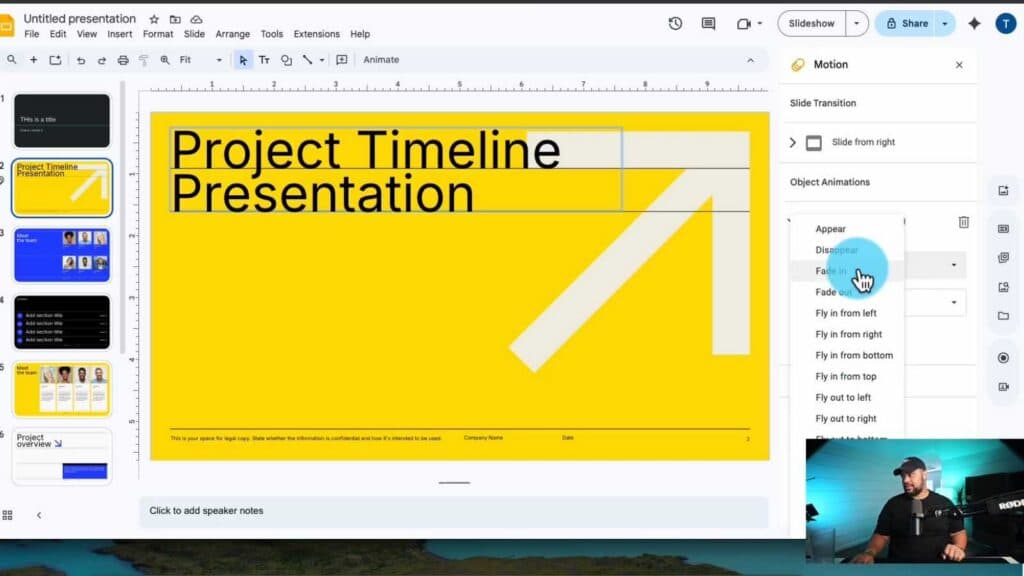
- Right-click on a slide in the left-hand sidebar and select “Transition” to open the motion menu. [0:46]
- Choose a transition style, such as “Slide from right,” and adjust the speed slider to your preferred timing. [1:44]
- To animate an object, select the item on the slide and click “Add animation” in the motion panel. [2:25]
- Choose an effect like “Fade in” and set the trigger to “After previous” or “With previous” so it plays automatically when the slide appears. [2:45]
- Continue selecting individual objects or multiple items using Shift-click to apply custom entrance effects and fine-tune their timing. [5:20]
Ninja Tip: You can quickly apply the same transition to every slide in your presentation by clicking the “Apply to all slides” button at the bottom of the transitions panel instead of setting them one by one.
If you need to completely reset all motion settings on a slide, you can remove them individually within the motion panel or delete the transition indicator by selecting “None” from the transition type dropdown.
Keep Reading



