How to Add or Remove Apps on Your Apple CarPlay Screen

By Trae Jacobs,

When you buy through our links, we may earn an affiliate commission.
Your Apple CarPlay screen is cluttered with apps you don’t use while driving. You can customize the layout to show only the icons you actually need.
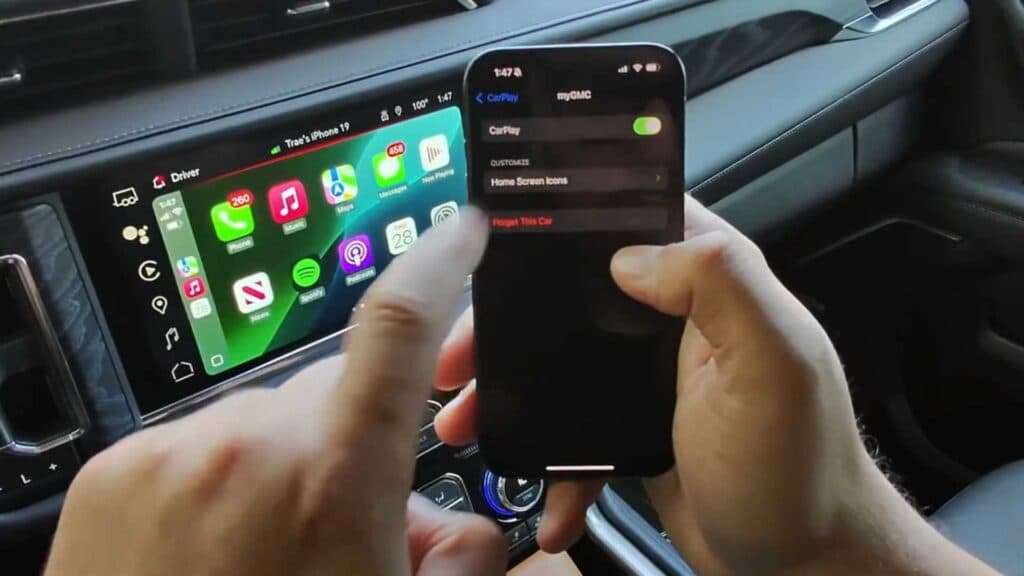
- Open the Settings app on your iPhone and tap General, then scroll down to select CarPlay [0:47].
- Select your vehicle from the list and tap on Home screen icons [0:53].
- Tap the red minus button next to any app you want to remove from your dashboard [1:12].
- To move an app, tap and hold the three horizontal lines on the right side of the app and drag it to your preferred position [1:33].
- Scroll down to the “More Apps” section and tap the green plus sign to add any compatible apps back onto your home screen.
Ninja Tip: You can also reset your CarPlay home screen layout to the original factory default by tapping “Reset” in the same CarPlay menu on your iPhone. This is helpful if you’ve moved too many apps around and want a clean slate.
If these steps do not resolve your issue, you can unpair your phone and remove the car from Settings > General > CarPlay > [Your Car Name] > Forget This Car.
Keep Reading



