How to Add or Remove Apps on Sony Bravia Android TV

By Sameer,

When you buy through our links, we may earn an affiliate commission.
You need to manage the apps on your Sony Bravia Android TV. You can easily install new streaming services or uninstall the ones you no longer use by following these steps.
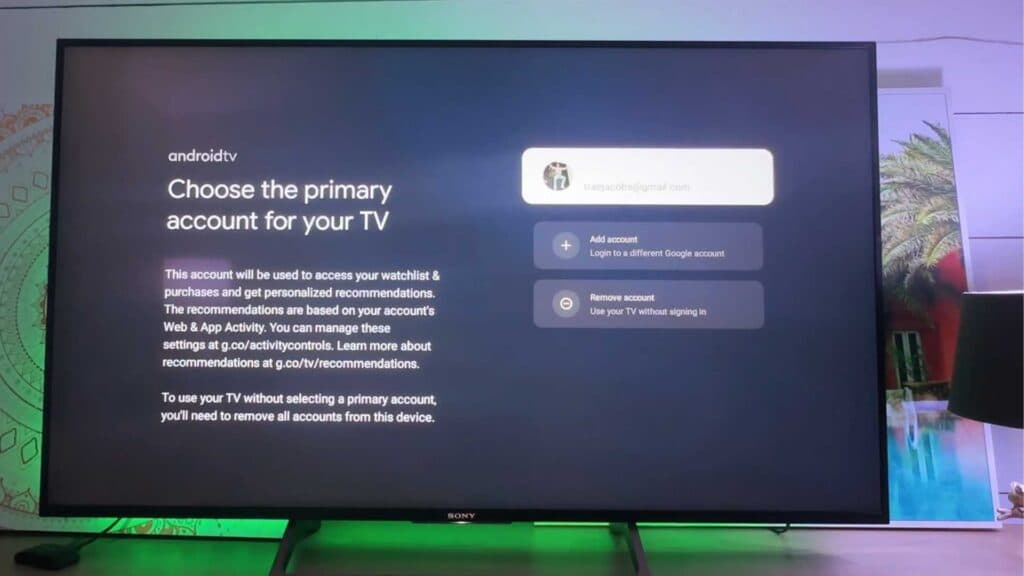
- Confirm you are signed in with your Google account on the TV to access the Google Play Store [0:15].
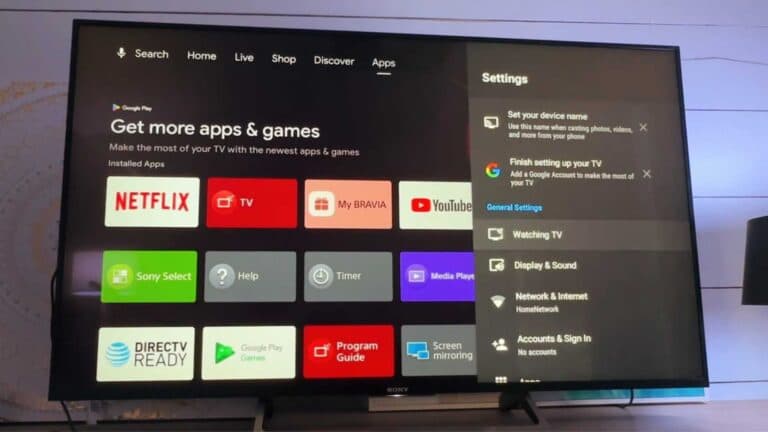
- Navigate to the Apps section on your home screen and select the Google Play Store [0:35].
- Use the search or browse function to find the app you want, then select the install button to download it [0:52].
- Highlight an installed app on your home screen, then press and hold the select button on your remote to open the menu and choose the uninstall option.
Ninja Tip: If your TV is running slow, go to Settings > Apps > See all apps > [App Name] > Clear cache to free up memory without deleting your login data.
If you still encounter issues with app performance, perform a factory reset by navigating to Settings > System > About > Reset > Factory data reset.
Keep Reading