How to Add New Blink Cameras to Your System

By Trae Jacobs,

When you buy through our links, we may earn an affiliate commission.
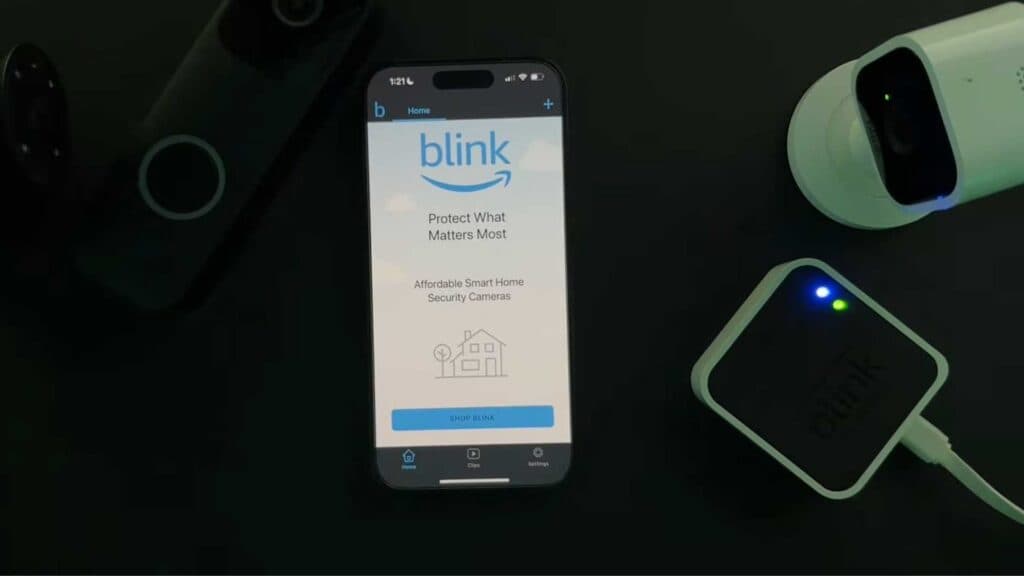
Your Blink security system is not detecting your new cameras or sync module. You can connect these devices to your app by following these steps.
- Open your Blink app, tap the plus sign at the top right, and select Sync Module [0:24].
- Scan the QR code located on the back of your sync module [0:40].
- Ensure your sync module is flashing blue and steady green, then tap Discover Device to join your local Wi-Fi network [1:00].
- Once the module is online, tap the plus icon in the app again and select your specific camera model, such as the Blink Mini [2:09].
- Scan the QR code on your new camera and confirm it is blinking blue and steady green [2:17].
- Tap Discover Device to connect the camera to your home Wi-Fi network [2:55].
- Go to Device Settings and choose General Settings to update your camera’s name for easy identification.
Ninja Tip: If your device remains unresponsive, ensure your smartphone is connected to a 2.4GHz Wi-Fi network, as Blink devices do not support 5GHz bands.
If you still cannot sync your device, perform a full factory reset by navigating to Settings > Device Settings > Reset System.
Keep Reading



