How to Add New Apps to Your Roku TV

By Trae Jacobs,

When you buy through our links, we may earn an affiliate commission.
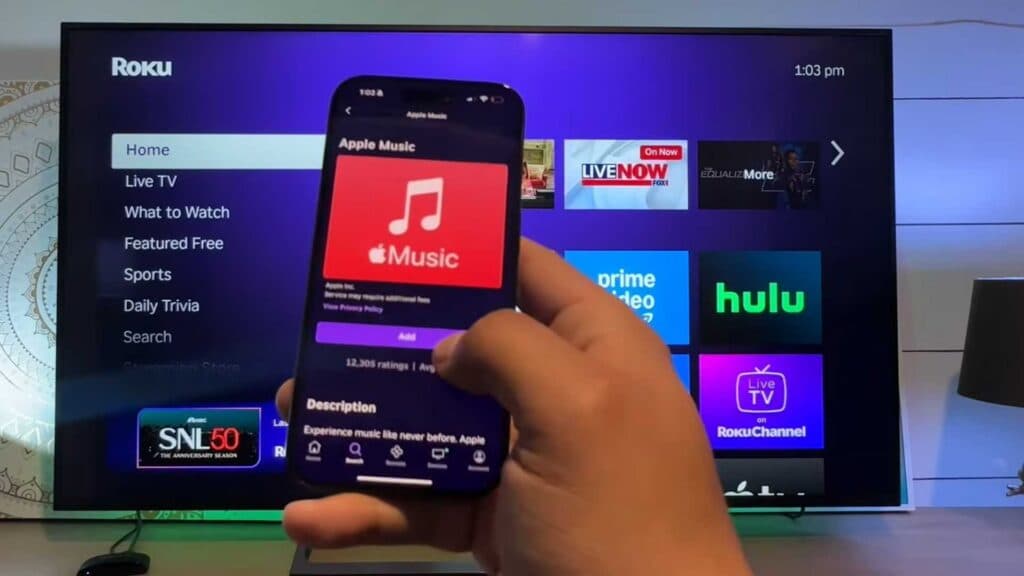
Your Roku device does not currently have all the streaming apps you want to use. You can easily add new channels directly through your TV or by using the official mobile app.
- Use your Roku remote to scroll down to the bottom of the home screen and select the “Store” or “Apps” shortcut section [0:19].
- Open the search tool within that section, type the name of the app you want, and select it to install [0:29].
- Alternatively, open the Roku app on your phone, navigate to the search section, and select the channel you want to add to your TV [1:13].
Ninja Tip: If you want to keep your home screen organized, you can move your newly added apps by highlighting the app icon, pressing the star (*) button on your remote, and selecting “Move channel.”
If these steps do not resolve your issue, you can perform a factory reset by navigating to Settings > System > Advanced system settings > Factory reset.
Keep Reading



