How to Add Delivery Instructions on Uber Eats

By Trae Jacobs,

When you buy through our links, we may earn an affiliate commission.
Your driver does not know where to drop off your food without clear directions. You can fix this by adding specific delivery notes directly within the app.
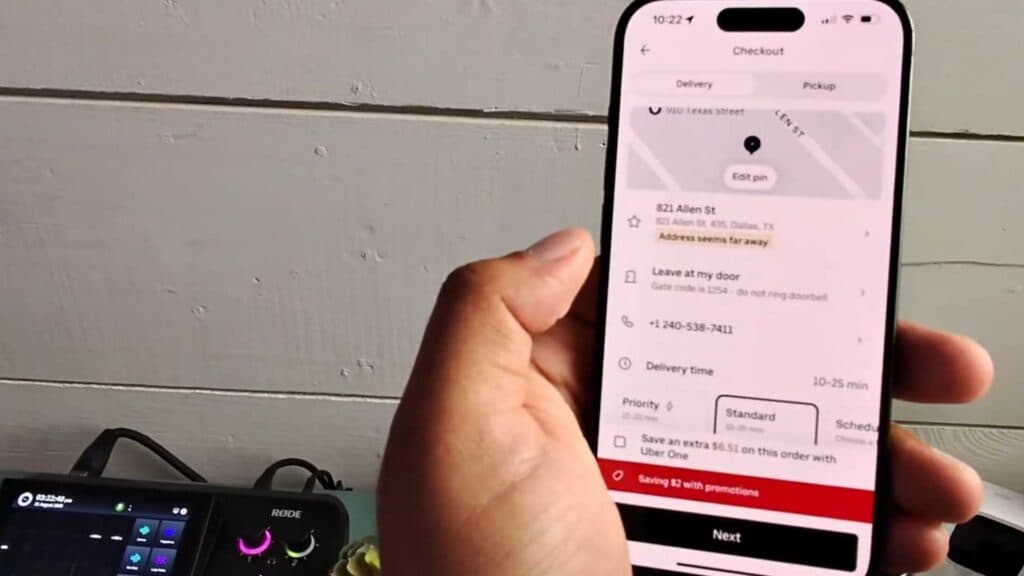
- Select your items, proceed to your cart, and tap the checkout button [0:24].
- Locate the section labeled “Leave at my door” and choose your preferred delivery method, such as “Meet me at my door” or “Leave at my location” [0:33].
- Tap to add your custom delivery instructions in the provided text field [0:51].
- Include details like gate codes or specific entry instructions to help the driver navigate your building [1:02].
- Attach a photo if you want to visually show the driver exactly where to go [0:57].
- Hit update to save your changes and proceed with your order [1:22].
Ninja Tip: To ensure your delivery notes are always included without having to type them every time, go to your saved addresses in your account profile and add the instructions to the “Apartment/Suite/Unit” field there.
If the app continues to ignore your saved preferences, navigate to Settings > General > Reset Network Settings to refresh your connection.
Keep Reading



