How to Add Custom Delivery Instructions in the DoorDash App

By Trae Jacobs,

When you buy through our links, we may earn an affiliate commission.
Your DoorDash driver is dropping off orders without knowing where to leave your food or how to access your building. You can fix this by saving specific delivery instructions directly to your account.
- Select your order and proceed to the checkout screen [0:13].
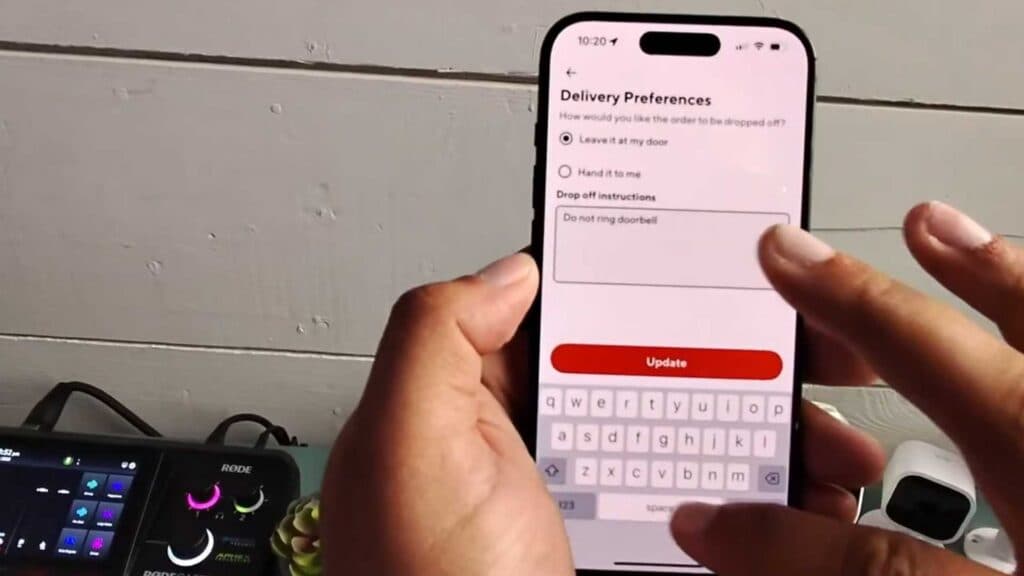
- Locate the delivery preferences section, which allows you to choose between options like “leave it at my door” or “hand it to me” [0:22].
- Enter your specific drop-off details, such as gate codes, apartment building directions, or instructions to leave the gate unlocked [1:10].
- Your instructions will automatically save to your account for future orders, though you can update or change them at the end of any order if your needs change.
Ninja Tip: If you need to give your driver extra details in real-time, wait until the order is placed and use the in-app chat feature to send a quick text message.
If you encounter persistent app errors, you can reset your local data by navigating to Settings > App Management > DoorDash > Storage > Clear Cache
Keep Reading


