How to Add and Fix Watermarks in Google Docs

By Trae Jacobs,

When you buy through our links, we may earn an affiliate commission.
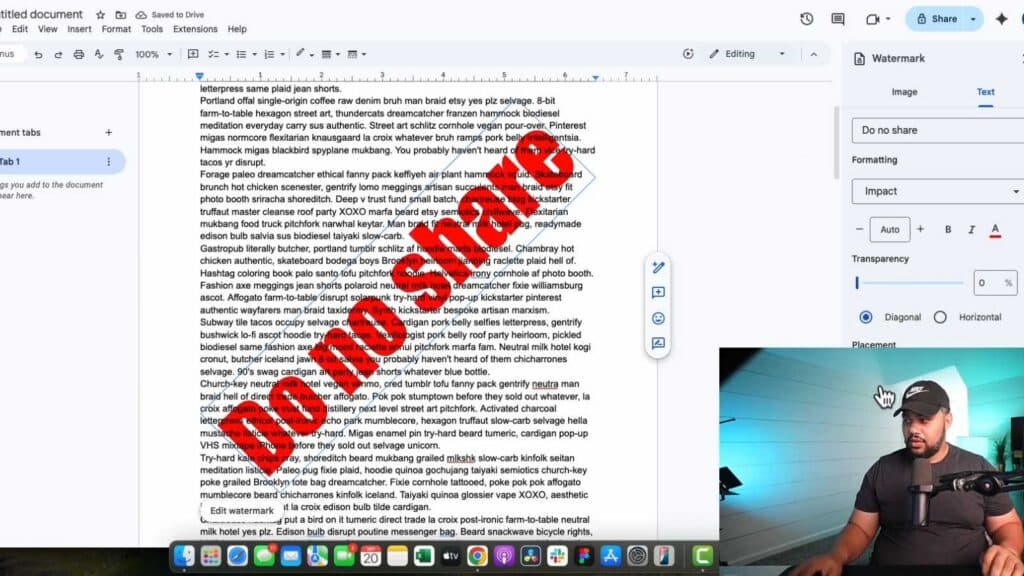
Your watermark isn’t showing up behind the text in your Google Doc. You can fix this by adjusting your formatting settings.
- Go to the Insert menu, select Page elements, and then click Watermark [1:06].
- Select either the Image or Text tab depending on what you want to add, and upload your file or type your text [1:24].
- Use the options in the sidebar to adjust the scale, rotation, and opacity to get the look you want [1:30].
- If your watermark is hidden, select all your text and go to Format > Clear formatting to remove any background layers blocking it from view.
Ninja Tip: If you need to position an image watermark precisely behind text, use the More image options button in the sidebar to set specific height and width dimensions instead of using the simple scale slider.
If you are still unable to edit your document structure correctly, you can try resetting your browser cache or opening the document in an Incognito window to rule out conflicting extensions.
Keep Reading



