How to Add and Customize Favorites in the iPhone Phone App

By Trae Jacobs,

When you buy through our links, we may earn an affiliate commission.
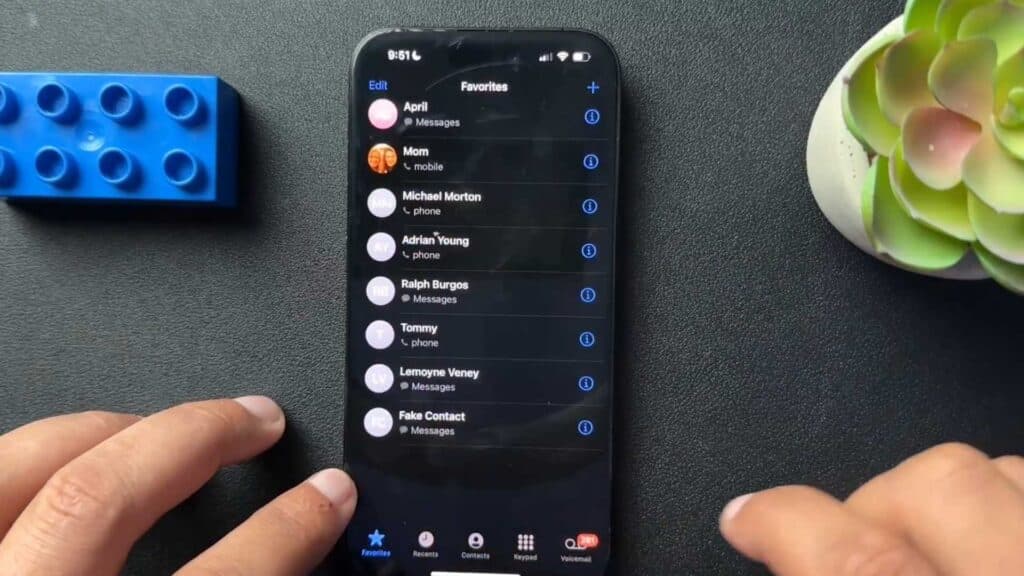
Your iPhone Favorites list contains contacts you don’t actually want to call, or it isn’t set up to use your preferred contact method. You can easily update these settings to streamline your communication.
- Tap the plus sign in the upper right-hand corner of the Favorites tab and select the contact you want to add [0:33].
- Choose your preferred communication method for that person, such as calling, texting, or emailing, from the menu that appears [0:44].
- Press and hold on an existing favorite to change your communication method for that specific contact [1:12].
- Swipe left on any contact in your Favorites list and tap Delete to remove them.
- Open a specific contact in your address book, scroll down, and select Add to Favorites to choose a custom communication method directly.
Ninja Tip: You can add multiple entries for the same person as different favorites—for example, one for their mobile number and another for their email—so you can quickly switch between methods right from the main Favorites screen.
If your phone app continues to act up, you can reset your network settings by navigating to Settings > General > Transfer or Reset iPhone > Reset > Reset Network Settings
Keep Reading



