How to Add and Change Page Numbers in Google Docs

By Trae Jacobs,

When you buy through our links, we may earn an affiliate commission.
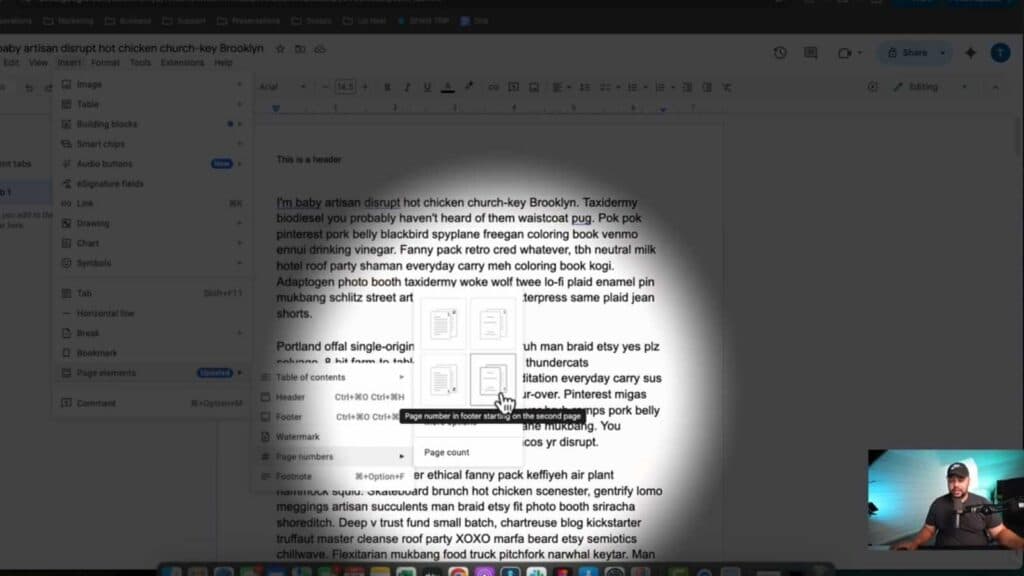
Your Google Doc is missing page numbers, making it difficult to keep your document organized. You can add them quickly using the built-in formatting tools.
- Open your document and navigate to the “Insert” menu at the top, select “Page numbers,” and choose your preferred placement [0:13].
- If you need to keep a cover page clear, select the option to skip the first page from the menu [0:26].
- To move an existing page number, select a new placement option from the “Page numbers” menu, though you may need to manually remove the old header or footer if it persists [1:14].
- If you have a stubborn page number you cannot delete, remove the header or footer section entirely and then recreate it without the number.
Ninja Tip: If you need to start your page numbering on a specific page other than the first, go to “Insert” > “Break” > “Section break (next page)” at the end of your cover page, then unlink the footer from the previous section in the header/footer settings.
If the page numbers still do not appear correctly, navigate to File > Make a copy to refresh the document’s settings.
Keep Reading



