How to Add a Custom Logo to Your Google Docs Header or Footer

By Trae Jacobs,

When you buy through our links, we may earn an affiliate commission.
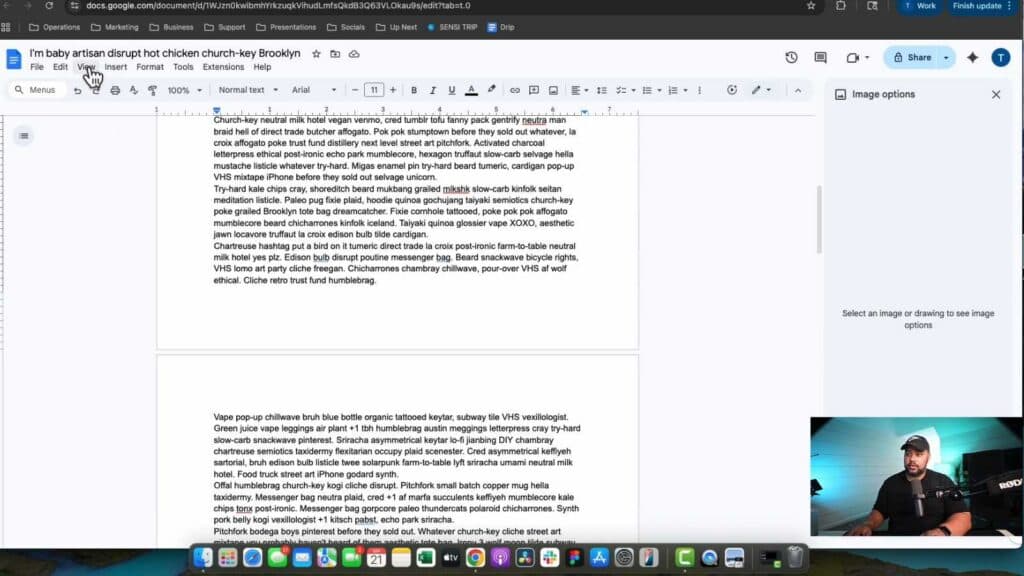
Your Google Doc does not have a logo in the header or footer section. You can add one by following these steps.
- Go to the Insert menu, select Page elements, and choose the header or footer option to open that section [0:23].
- With the header or footer section selected, go to Insert, click Image, and choose Upload from computer to pick your logo file [0:37].
- Click on the image to resize it or drag it to your preferred position [0:49].
- Double-click the image to open the image options menu if you need to lock the aspect ratio, adjust text wrapping, or change the angle [1:02].
- Add any additional text, format it using the standard toolbar tools, and use the dropper tool to match your text color to your logo colors [2:09].
- Click anywhere outside the header or footer area to return to editing your document body.
Ninja Tip: If you want your logo to appear on specific pages only, check the “Different first page” box in the header/footer settings menu so your logo doesn’t conflict with your document’s title page.
If you need to clear your formatting entirely to start over, go to Format > Clear formatting.
Keep Reading



